> ## Documentation Index
> Fetch the complete documentation index at: https://docs.trackfunnels.com/llms.txt
> Use this file to discover all available pages before exploring further.
# Integrate ActiveCampaign with TrackFunnels via Webhook
> Connect ActiveCampaign to TrackFunnels to track email link clicks and tag events, and attribute them to the UTM campaigns that drove them.
Connecting ActiveCampaign to TrackFunnels lets you see UTM link clicks from your email campaigns appear directly in your TrackFunnels dashboard. Instead of guessing which emails are driving traffic, you get click data attributed to the exact links you built — without leaving your TrackFunnels account.
This integration requires a **TrackFunnels Pro** account. [Upgrade or create a free account](https://trackfunnels.com/utm-links-builder) to get started.
## What You Can Track
TrackFunnels supports two event trigger types for the ActiveCampaign integration:
**Email Link Click Tracking** - Tracks clicks on TrackFunnels-built links that appear inside your ActiveCampaign emails. When a contact clicks one of your links, the event is sent to TrackFunnels and recorded against that link. You'll see the data under the **Clicks Received** column in your Saved Links dashboard.
**Tag Added Tracking** - Tracks when a tag is added to a contact in ActiveCampaign. This trigger is currently a work in progress — full details will be updated here when it's available.
## Connect ActiveCampaign
In your TrackFunnels account, go to **Account Settings > Integrations** and click **Integrate** next to ActiveCampaign.
You'll land on the ActiveCampaign Integration screen where you can generate a webhook.
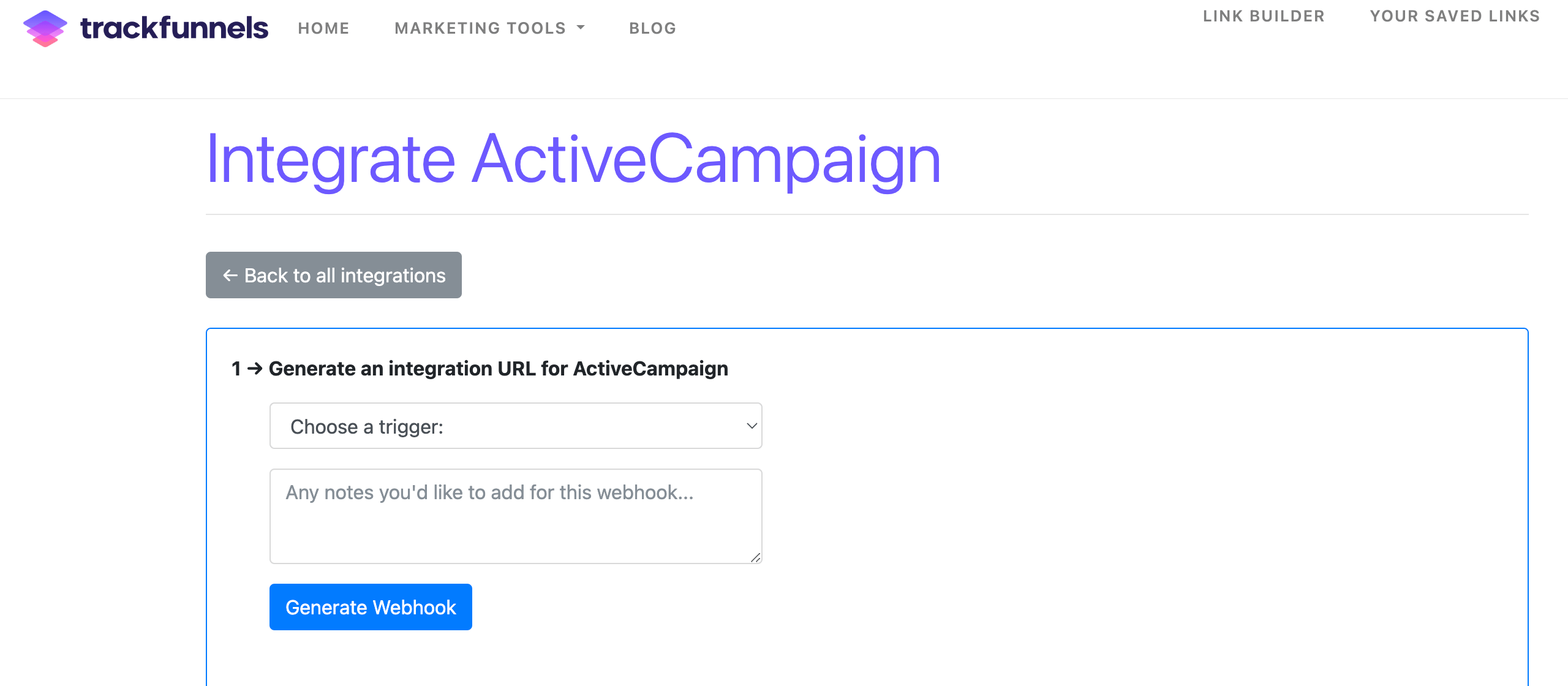 Select the **Event Trigger** you want to track:
* **Email Link Click Tracking** — to track clicks on your TrackFunnels links in emails
* **Tag Added Tracking** — to track when a contact tag is added
Optionally add a note to help you identify this webhook later, then click **Generate Webhook**. A webhook URL will appear on screen — it will look like this:
```text theme={null}
https://trackfunnels.com/hook/xx/xxxx/email/xx
```
Copy this URL and keep the tab open, or save the URL somewhere accessible. You'll paste it into ActiveCampaign in the next steps.
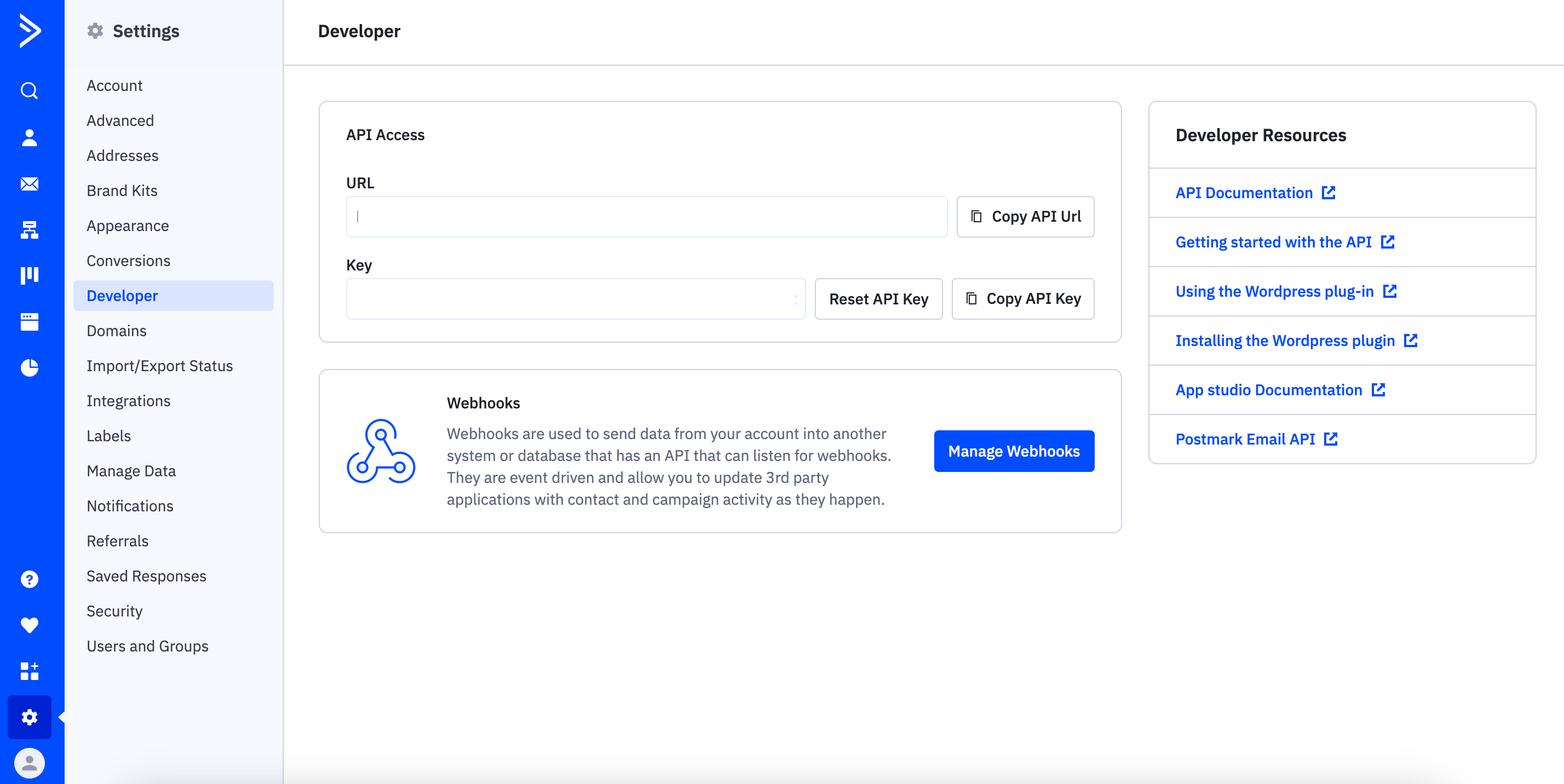
In a new tab, go to your ActiveCampaign account. Navigate to **Settings > Developer** and click the **Manage Webhook** button.
Select the **Event Trigger** you want to track:
* **Email Link Click Tracking** — to track clicks on your TrackFunnels links in emails
* **Tag Added Tracking** — to track when a contact tag is added
Optionally add a note to help you identify this webhook later, then click **Generate Webhook**. A webhook URL will appear on screen — it will look like this:
```text theme={null}
https://trackfunnels.com/hook/xx/xxxx/email/xx
```
Copy this URL and keep the tab open, or save the URL somewhere accessible. You'll paste it into ActiveCampaign in the next steps.
In a new tab, go to your ActiveCampaign account. Navigate to **Settings > Developer** and click the **Manage Webhook** button.
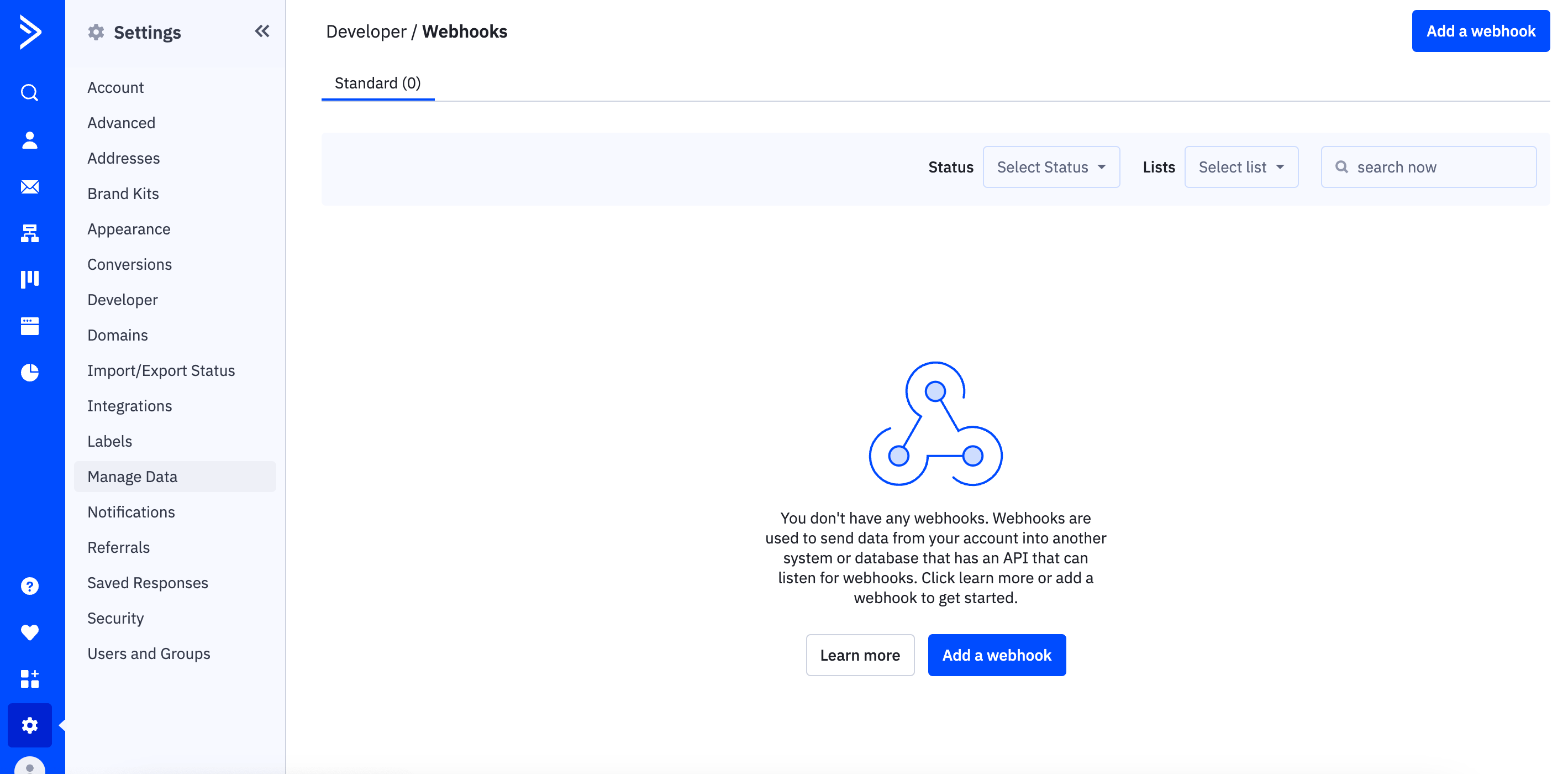
 You'll see a list of any existing webhooks. If this is the first time you are adding a Webhook, you'll see an empty page. Click on **Add a Webhook.**
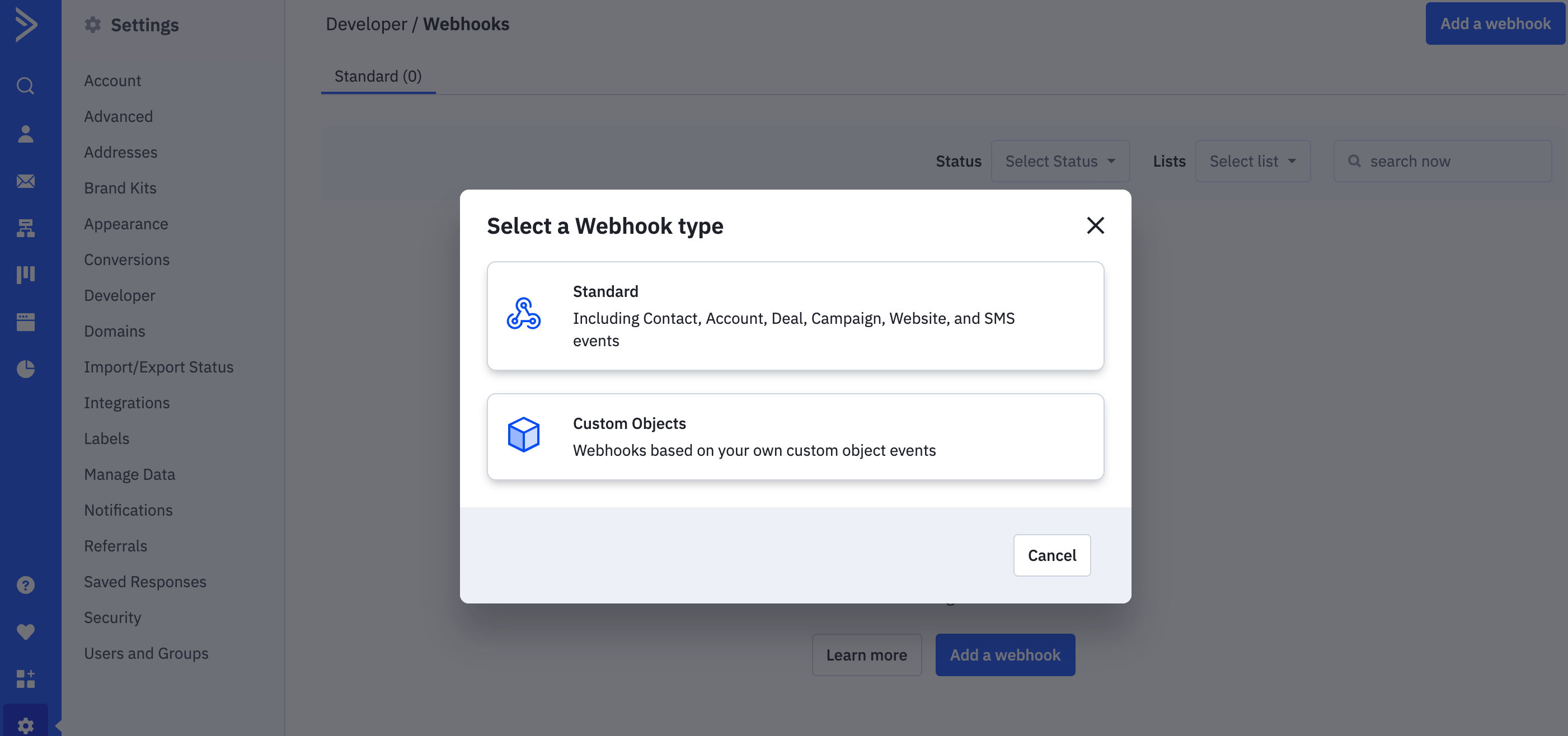
 Then select **Standard** as the webhook type.
 Fill in the webhook configuration form:
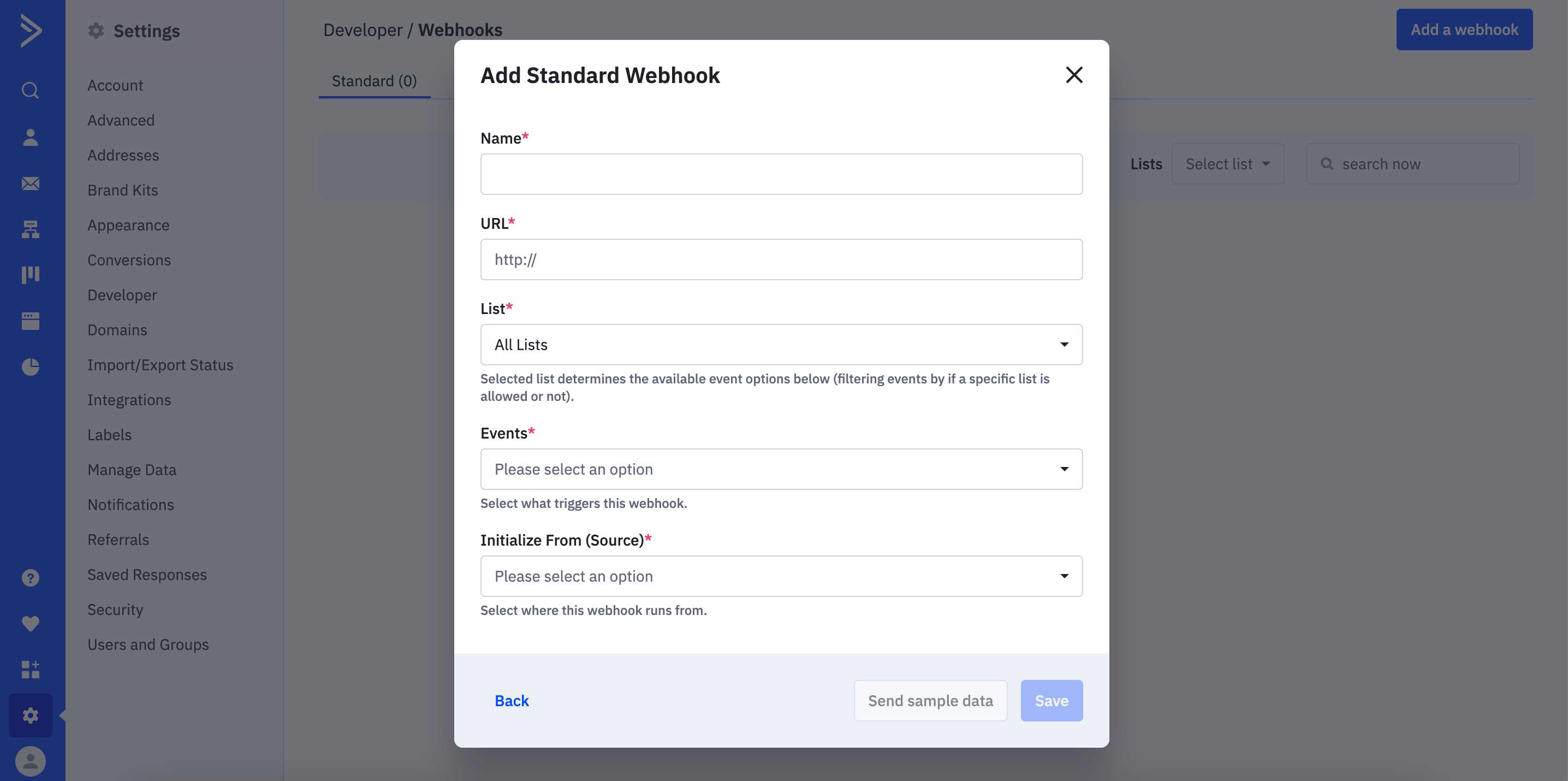 * **Name** — enter a descriptive label, for example: `TrackFunnels Integration for Link Clicks`
* **URL** — paste the webhook URL you generated in TrackFunnels
* **List** — select the ActiveCampaign list you want this integration to capture
* **Events** — select the event that matches your chosen trigger:
* If you selected **Email Link Click Tracking** in TrackFunnels → choose **Link Clicked**
* If you selected **Tag Added Tracking** in TrackFunnels → choose **Contact Tag Added**
* **Initialize from Source** — select all available options so that events are captured regardless of how they were initiated (by a user, an admin, an API call, etc.)
Click **Save**. Your ActiveCampaign account is now connected to TrackFunnels and will begin sending data immediately.
## Viewing Your Data
Once the integration is live and events start flowing, you can see your click data in the **Your Saved Links** dashboard. Look for the **Clicks Received** column next to each link.
Keep in mind that click tracking only applies to links you built inside TrackFunnels. Links created outside of TrackFunnels will not appear in this view, even if they are included in your ActiveCampaign emails.
If you run into any issues, email the TrackFunnels team at [malik@trackfunnels.com](mailto:malik@trackfunnels.com) for help.
* **Name** — enter a descriptive label, for example: `TrackFunnels Integration for Link Clicks`
* **URL** — paste the webhook URL you generated in TrackFunnels
* **List** — select the ActiveCampaign list you want this integration to capture
* **Events** — select the event that matches your chosen trigger:
* If you selected **Email Link Click Tracking** in TrackFunnels → choose **Link Clicked**
* If you selected **Tag Added Tracking** in TrackFunnels → choose **Contact Tag Added**
* **Initialize from Source** — select all available options so that events are captured regardless of how they were initiated (by a user, an admin, an API call, etc.)
Click **Save**. Your ActiveCampaign account is now connected to TrackFunnels and will begin sending data immediately.
## Viewing Your Data
Once the integration is live and events start flowing, you can see your click data in the **Your Saved Links** dashboard. Look for the **Clicks Received** column next to each link.
Keep in mind that click tracking only applies to links you built inside TrackFunnels. Links created outside of TrackFunnels will not appear in this view, even if they are included in your ActiveCampaign emails.
If you run into any issues, email the TrackFunnels team at [malik@trackfunnels.com](mailto:malik@trackfunnels.com) for help.