> ## Documentation Index
> Fetch the complete documentation index at: https://docs.trackfunnels.com/llms.txt
> Use this file to discover all available pages before exploring further.
# Integrate Jotform with TrackFunnels for Form Attribution
> Connect Jotform to TrackFunnels to attribute form submissions to your UTM parameters and see which campaigns are generating leads.
## Why should you integrate Jotform with TrackFunnels?
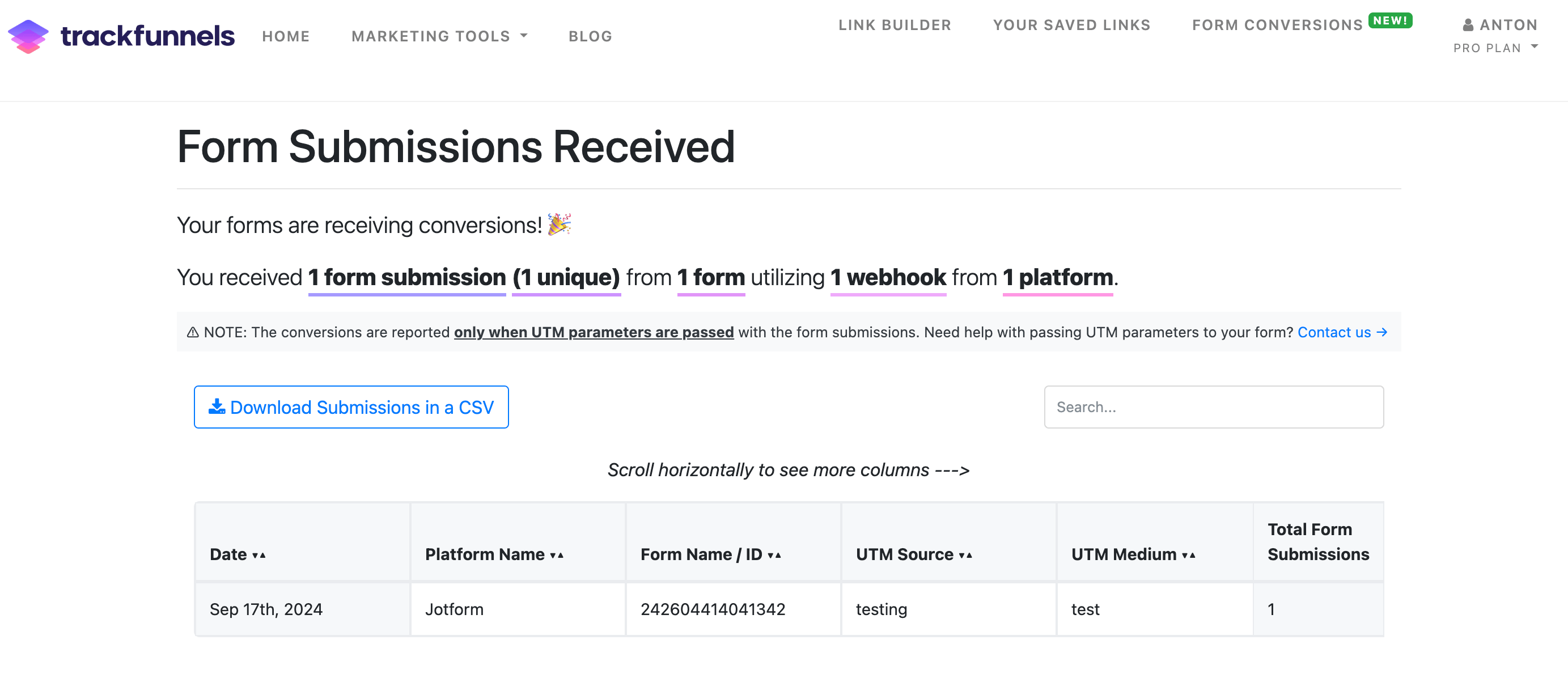
Connecting Jotform to TrackFunnels lets you attribute every form submission to the UTM parameters that brought the visitor to your form. Whether you're tracking lead gen forms, contact forms, or survey responses, you'll see exactly which campaigns, sources, and mediums are driving conversions — all inside your TrackFunnels **Form Submissions Dashboard**.
 This integration requires a **TrackFunnels Pro** account. It works with **all Jotform plans**, including free accounts. [Upgrade or create a free TrackFunnels account](https://trackfunnels.com/utm-links-builder) to get started.
## Connect Jotform
In your TrackFunnels account, go to **Account Settings > Integrations** and click **Integrate** next to Jotform. You'll land on the Jotform Integration screen.
This integration requires a **TrackFunnels Pro** account. It works with **all Jotform plans**, including free accounts. [Upgrade or create a free TrackFunnels account](https://trackfunnels.com/utm-links-builder) to get started.
## Connect Jotform
In your TrackFunnels account, go to **Account Settings > Integrations** and click **Integrate** next to Jotform. You'll land on the Jotform Integration screen.
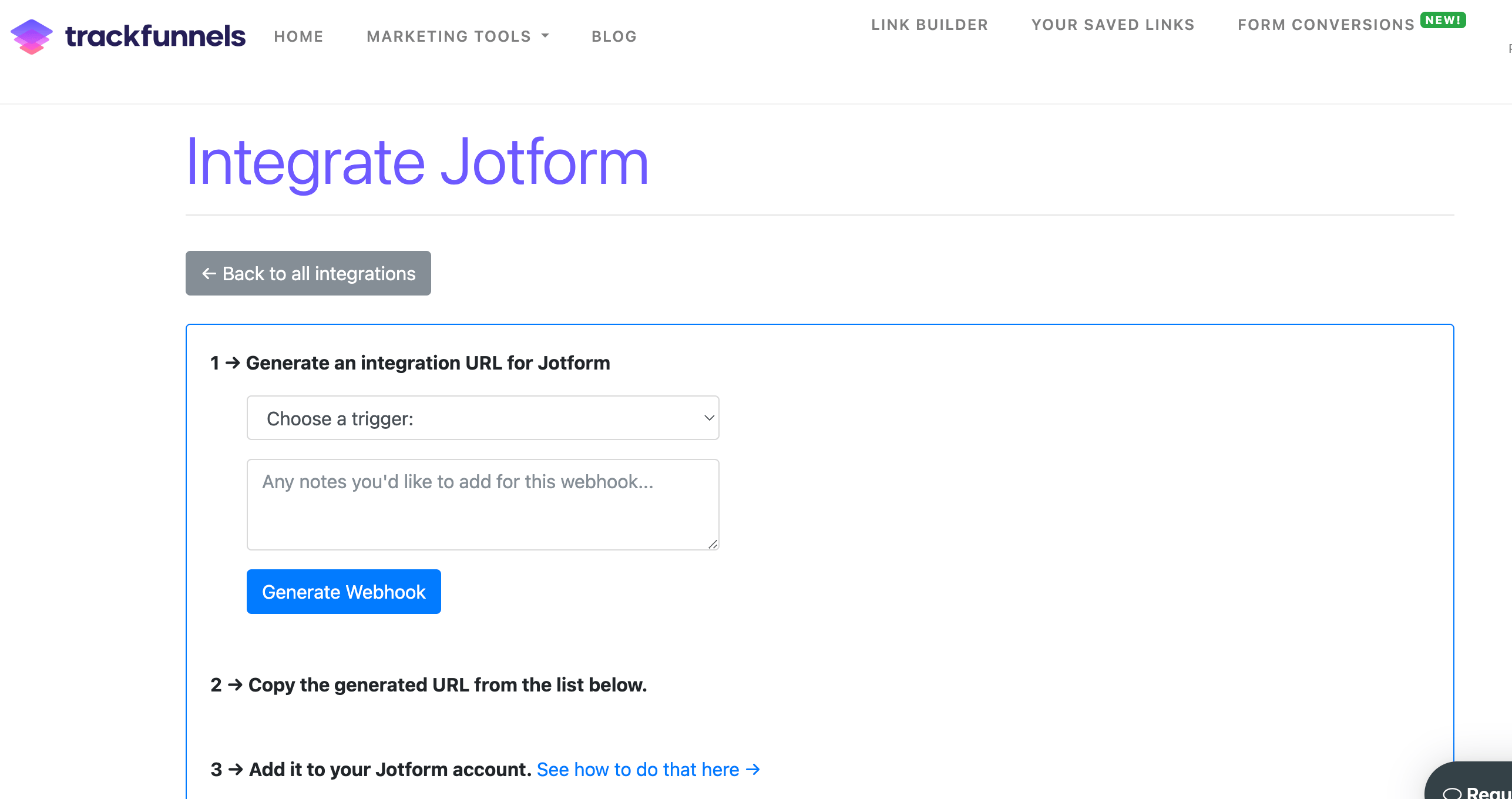 In the dropdown field, select **Form Submissions**. Optionally, add a note to help you identify this webhook later. Then click **Generate Webhook**.
A webhook URL will be generated and displayed on screen. Copy this URL — you'll paste it into Jotform in the next steps.
In a new browser tab, go to your Jotform account. Open the form you want to connect to TrackFunnels and click **Edit Form**.
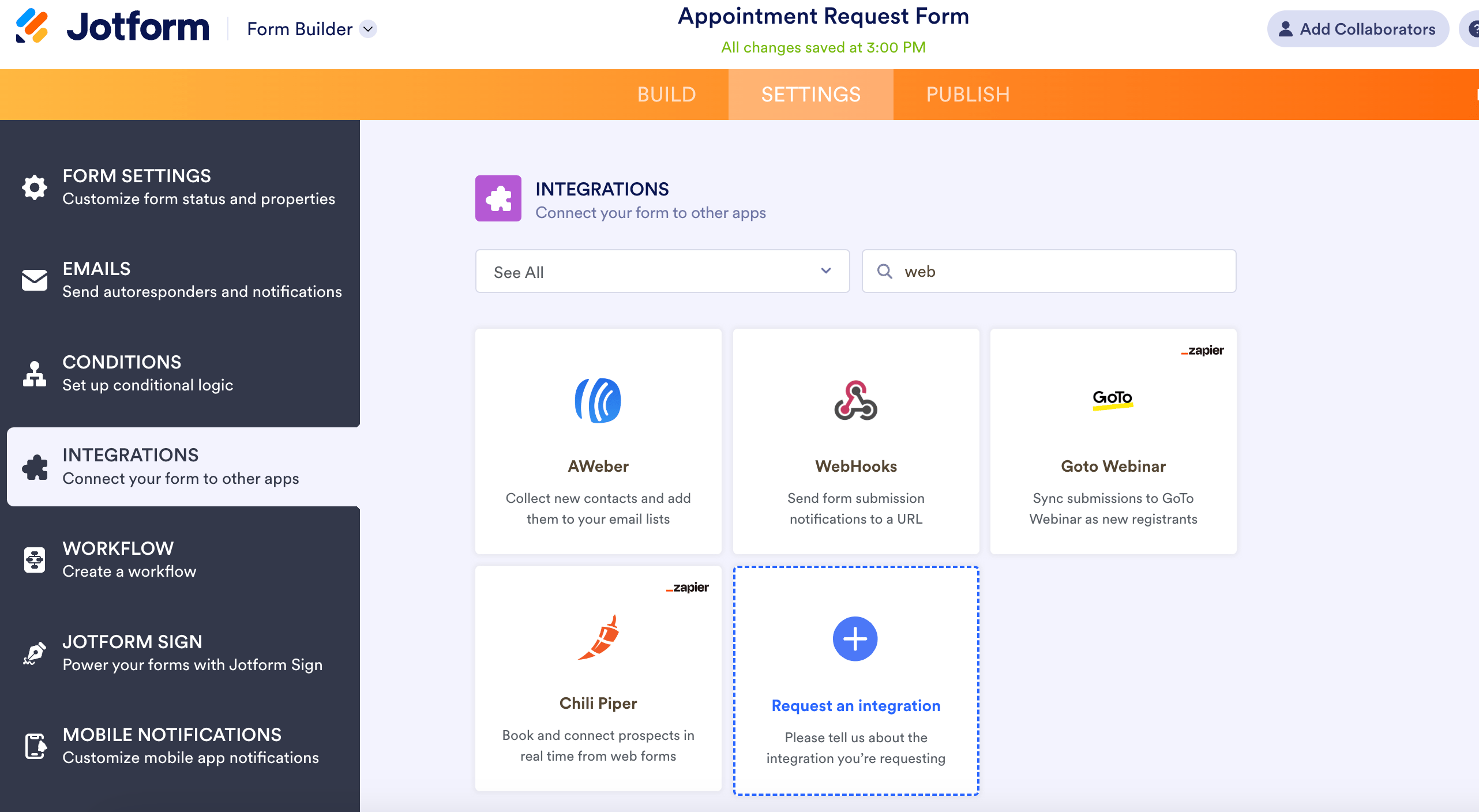
In the left-hand menu, click **Integrations**. Use the search bar to search for `Webhook`, then click the **Webhook** card when it appears as shown below.
In the dropdown field, select **Form Submissions**. Optionally, add a note to help you identify this webhook later. Then click **Generate Webhook**.
A webhook URL will be generated and displayed on screen. Copy this URL — you'll paste it into Jotform in the next steps.
In a new browser tab, go to your Jotform account. Open the form you want to connect to TrackFunnels and click **Edit Form**.
In the left-hand menu, click **Integrations**. Use the search bar to search for `Webhook`, then click the **Webhook** card when it appears as shown below.
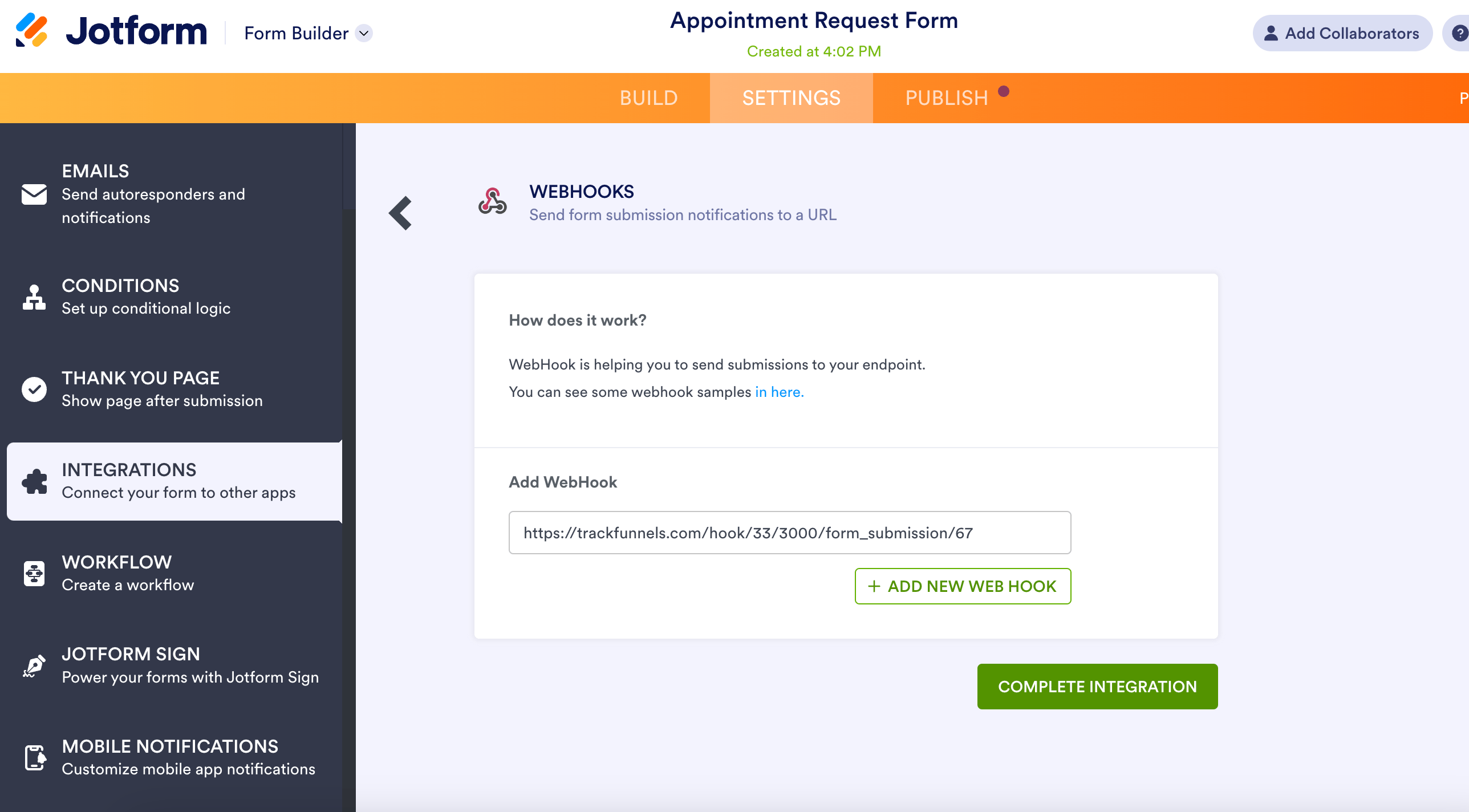
 You'll see an **Add Webhook** field. Paste the webhook URL you generated in TrackFunnels into this field, then click **Complete Integration**.
That's it — your Jotform form is now connected to TrackFunnels and will begin sending submission data immediately.
You'll see an **Add Webhook** field. Paste the webhook URL you generated in TrackFunnels into this field, then click **Complete Integration**.
That's it — your Jotform form is now connected to TrackFunnels and will begin sending submission data immediately.
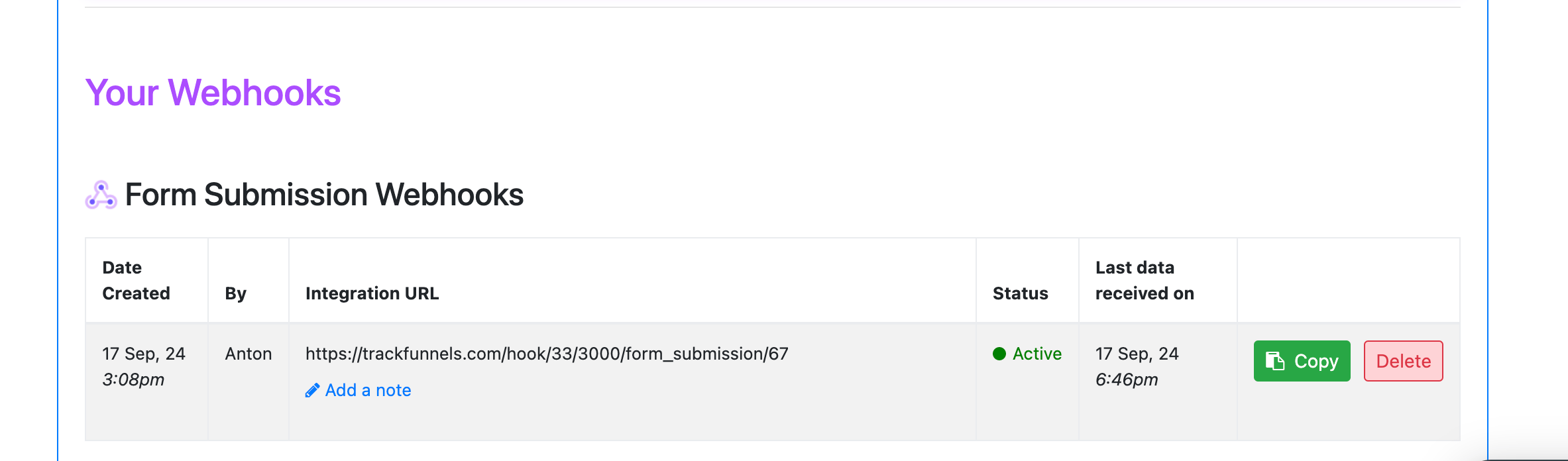
 Back in your TrackFunnels account, once a form submission is received, you'll see an **Active Status** indicator appear next to your webhook. This confirms data is flowing through successfully.
 ## Spam Submissions
All form submissions that Jotform sends via webhook are recorded in your TrackFunnels dashboard — including spam and test submissions. TrackFunnels cannot filter these on your behalf. To reduce unwanted submissions, enable spam protection and CAPTCHA settings directly in your Jotform form configuration.
## **Selective Submissions**
All form submissions appear in your **Form Submissions Dashboard**, with each row showing the submitted data alongside the UTM parameters that were present when the visitor completed the form.
Use the **search box** at the top of the dashboard to filter submissions by any attribute. For additional features — such as custom filtering, exports, or new columns — click the **Request a Feature** button in the bottom-right corner of your account screen.
You cannot delete individual rows from the dashboard. Manage your submission data at the Jotform level if needed.
If you're having trouble getting UTM parameters to pass through to your Jotform forms, reach out directly at [malik@trackfunnels.com](mailto:malik@trackfunnels.com) — the team is happy to help you get it working.
## Spam Submissions
All form submissions that Jotform sends via webhook are recorded in your TrackFunnels dashboard — including spam and test submissions. TrackFunnels cannot filter these on your behalf. To reduce unwanted submissions, enable spam protection and CAPTCHA settings directly in your Jotform form configuration.
## **Selective Submissions**
All form submissions appear in your **Form Submissions Dashboard**, with each row showing the submitted data alongside the UTM parameters that were present when the visitor completed the form.
Use the **search box** at the top of the dashboard to filter submissions by any attribute. For additional features — such as custom filtering, exports, or new columns — click the **Request a Feature** button in the bottom-right corner of your account screen.
You cannot delete individual rows from the dashboard. Manage your submission data at the Jotform level if needed.
If you're having trouble getting UTM parameters to pass through to your Jotform forms, reach out directly at [malik@trackfunnels.com](mailto:malik@trackfunnels.com) — the team is happy to help you get it working.