

Email tracking pixels are a Pro Plan feature. Upgrade your account before following the steps below.
How Email Opens Are Tracked
Understanding the Measurement Protocol
Email opens are unique interactions - they don’t occur on your website, so the standard GA4 JavaScript tag or Google Tag Manager cannot capture them. TrackFunnels handles this by sending each open as an offline event via the GA4 Measurement Protocol. Because every hit arrives outside of a browser session, each email open starts a new session and creates a new user in GA4 by default.How GA4 Differs from Universal Analytics
If you previously used the Measurement Protocol with Universal Analytics (UA), be aware that GA4 has changed the authentication model significantly. The UA version required only a Tracking ID - you could send data by constructing a URL with the right query parameters. GA4’s Measurement Protocol now requires an API Secret Key to authenticate every hit. This key is generated inside your GA4 property and must be added to your TrackFunnels account settings before any pixel can fire successfully. See how to generate API secret in GA4.Traffic Attribution in GA4 Measurement Protocol
The GA4 Measurement Protocol currently does not support passing UTM parameters alongside a hit. To ensure you still receive meaningful campaign context, TrackFunnels attaches additional event parameters to everyemail open event. These parameters carry the equivalent of UTM data - source, medium, campaign, term, and content - so you can analyse email performance alongside your other channels. Because they arrive as event parameters rather than session-level UTM values, you must register them as custom dimensions in GA4 before they appear in your reports.
Set Up Your TrackFunnels Account
Before you build your first pixel, complete these two configuration steps inside your TrackFunnels Account Settings.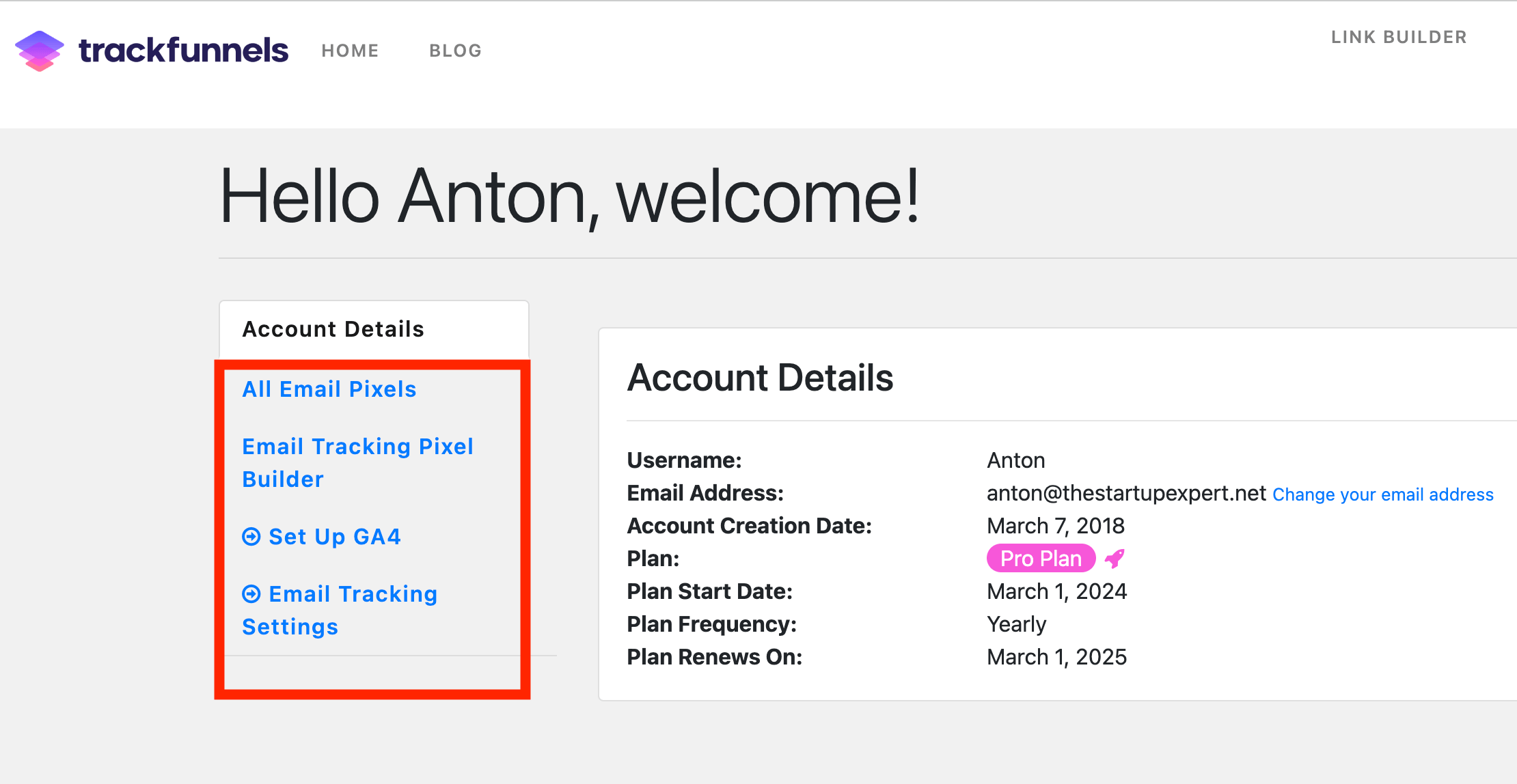
1
Set Up GA4
Go to Account Settings → Set Up GA4 and fill in the following fields.GA4 Stream DetailsNavigate to your GA4 property: Admin → Data Streams, then select your web stream. Copy the following values into TrackFunnels: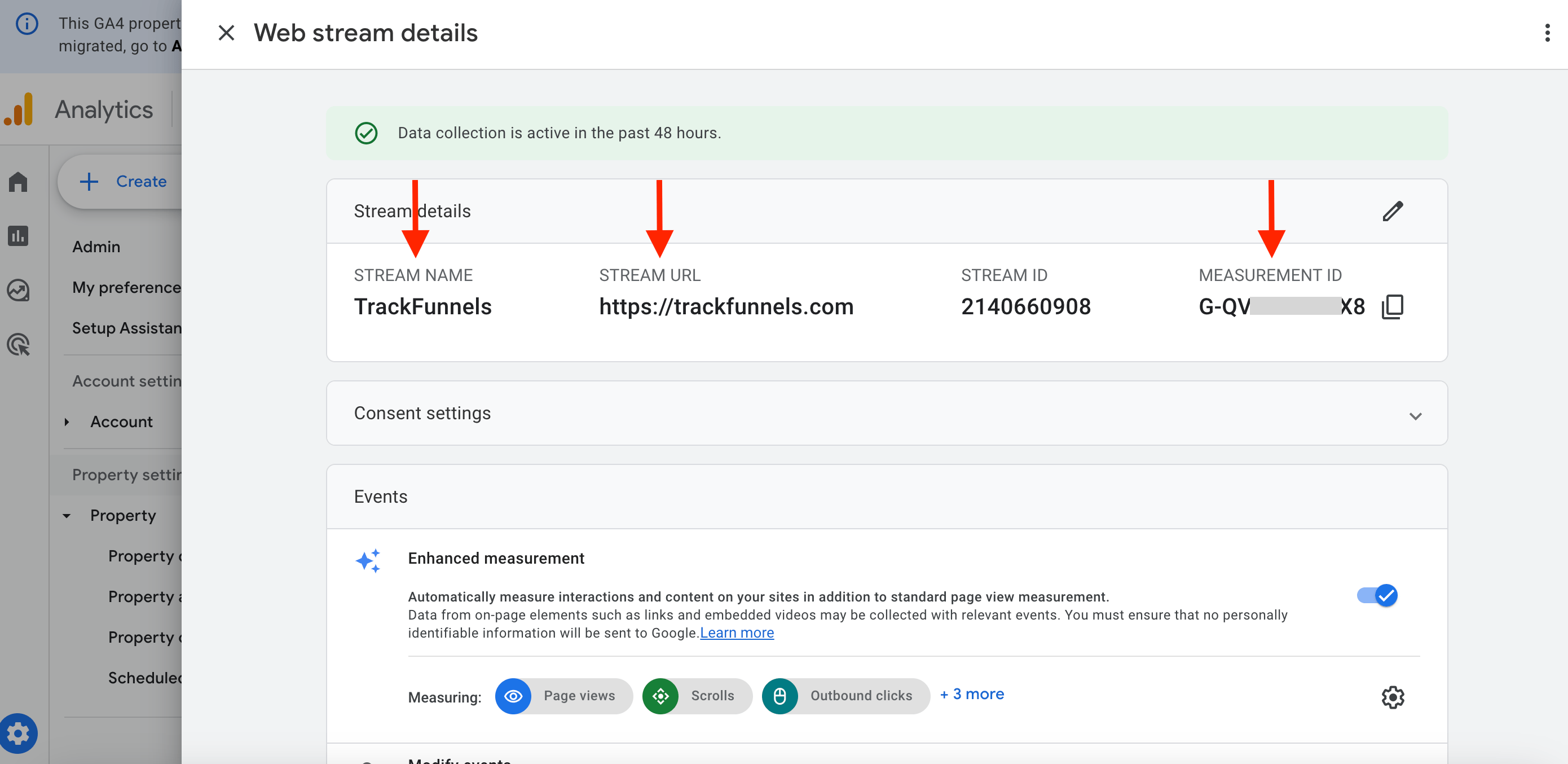
- Stream Name - the human-readable name you gave the stream in GA4.
- Stream URL - the URL associated with the data stream.
- Measurement ID - formatted as
G-XXXXXXXXXX, visible at the top of the stream detail page.
2
Configure Email Platform Settings
Go to Account Settings → Email Tracking Settings. These fields control the data quality of your tracking, so fill them in carefully.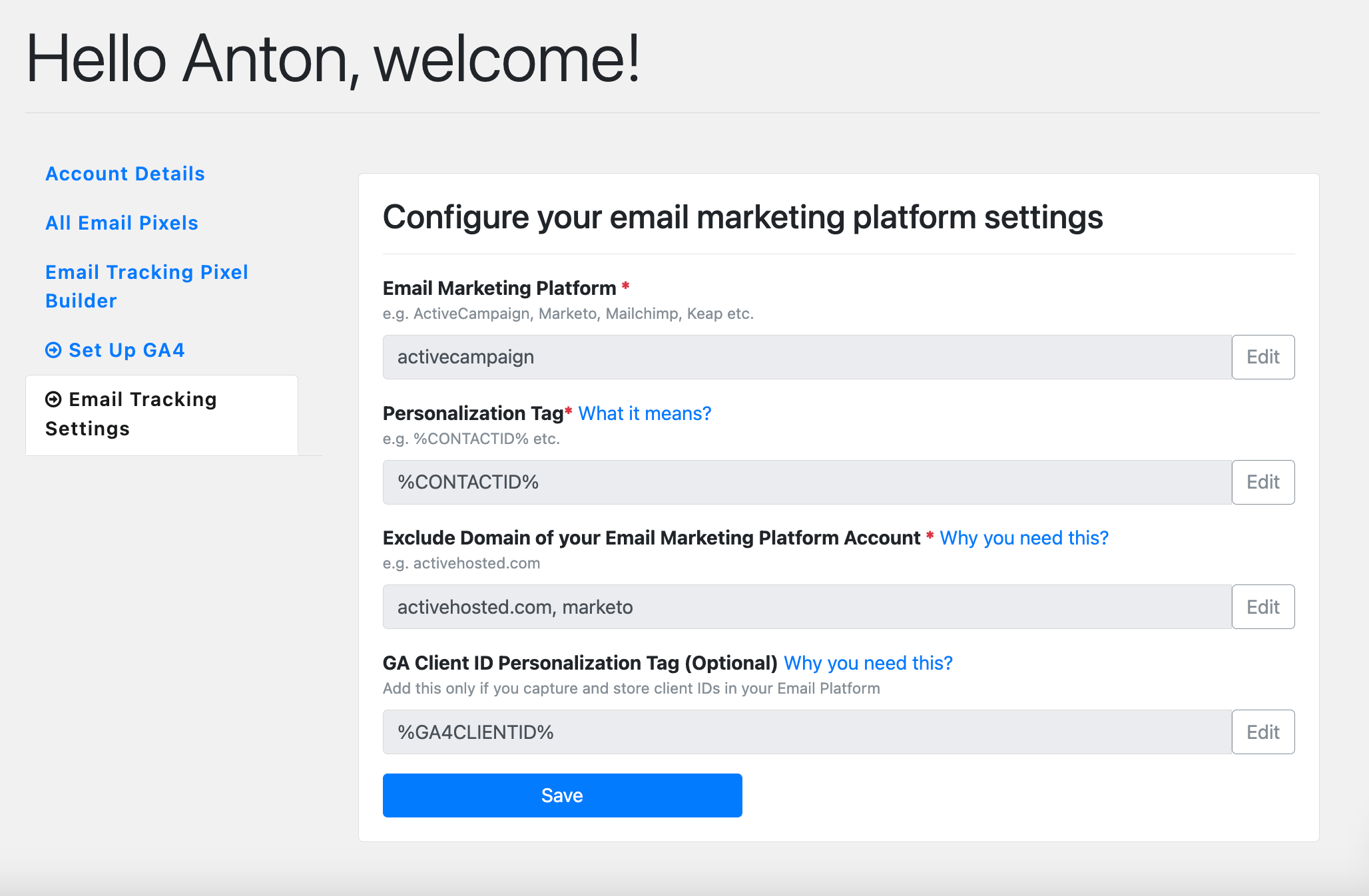
- Email Marketing Platform - enter the well-known name of your email platform (e.g.
ActiveCampaign). This value is automatically converted to lowercase when saved. - Personalization Tag for Contact ID - the merge code your platform uses to inject a contact’s unique ID into an email (e.g.
%CONTACTID%for ActiveCampaign). This is a required field. If you’re unsure of the correct tag, check your platform’s documentation or contact their support team. - Exclude Domain - enter the domain used inside your email account, not the platform’s main marketing domain. For example, for ActiveCampaign accounts enter
activehosted.com, notactivecampaign.com. - GA4 Client ID Personalization Tag (optional) - if you record the GA4 Client ID in your email platform as a contact field, enter its merge code here. TrackFunnels will pass the stored Client ID with every pixel hit, preventing new GA4 users from being created for each open event.
Using the Pixel Generator Form
Open Email Tracking Pixel Builder in your account to access the Pixel Generator Form. The form is designed to be user-friendly - helper links appear at each field to explain what is expected and why it matters. Fill in the event name and whichever of the 12 available parameters are relevant to your campaign, then click Generate.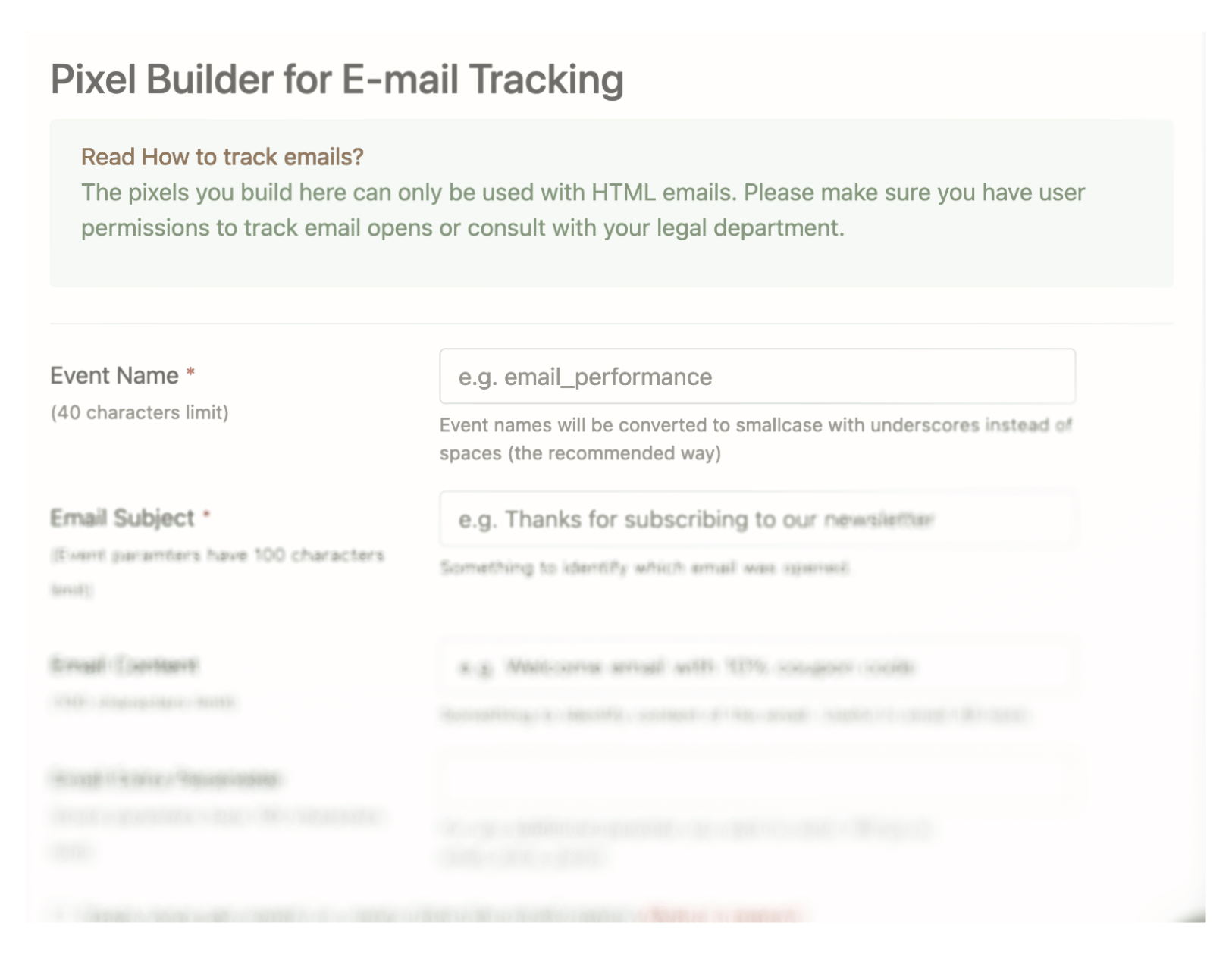
open is recorded as an event in GA4 via the Measurement Protocol. Note that there may be a slight delay before the event appears in GA4 reports, because TrackFunnels batches hits to conserve resources.
GA4 Event Parameters
Every email pixel you generate can carry up to 12 event parameters. This is well within GA4’s limit of 25 parameters per event.Group 1 - Email Identification
Group 2 - Recipient & Timing
Group 3 - Campaign Attribution
Group 4 - Extra
Set Up GA4 Custom Dimensions
GA4 does not surface event parameters in standard reports until you register them as custom dimensions. Create one custom dimension for each parameter you plan to send. To create a custom dimension, go to your GA4 property: Admin → Custom definitions → Custom dimensions → Create custom dimension. Set the scope to Event, enter the exact parameter name (e.g.email_subject), and save.
Once your custom dimensions are configured, all 12 parameters become available in GA4’s Explorer reports and standard reporting interface, so you can slice and analyse your email open data in full detail.