

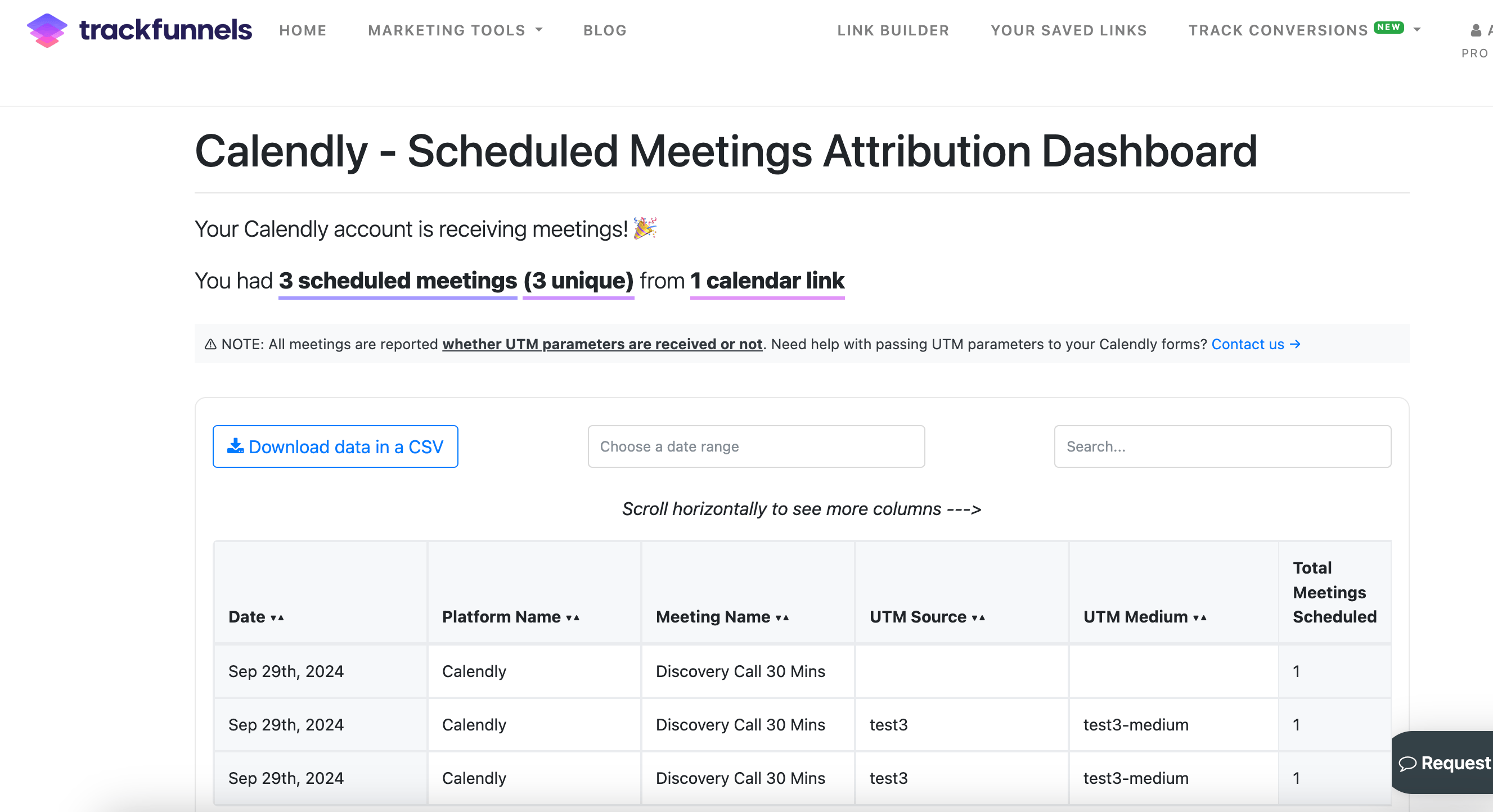
This integration requires both a TrackFunnels Pro account and a paid Calendly account. Calendly restricts API and webhook access to paid plan users only. Upgrade or create a free TrackFunnels account to get started.
Connect Calendly
1
Start the integration in TrackFunnels
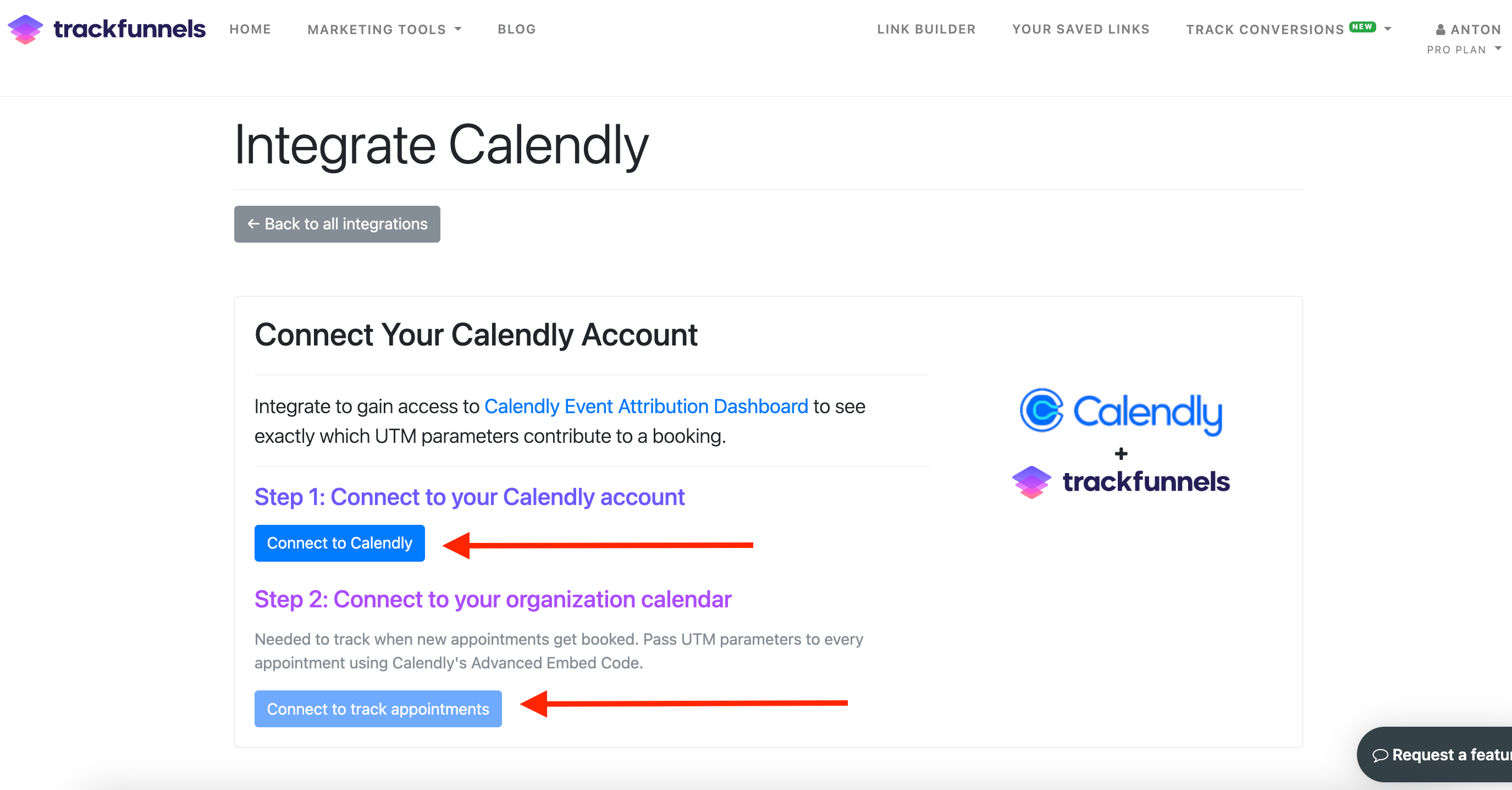
In your TrackFunnels account, go to Account Settings > Integrations and click Integrate next to Calendly. You’ll land on the Calendly Integration screen, where you’ll complete just two button clicks to establish the connection.
2
Connect your Calendly account
Click the first button to authenticate with your Calendly account. This step verifies that you hold a paid Calendly plan. If your Calendly account is on a free plan, the connection will not proceed — you’ll need to upgrade your Calendly account first (unfortunately, Calendly offers API integrations to only Paid users).Once your Calendly account is successfully connected, the second button becomes active.
3
Connect your calendar
Click the second button to create the webhook API connection between TrackFunnels and your Calendly calendar. This is the step that enables appointment tracking — without it, bookings will not be sent to TrackFunnels.On a successful connection, the status indicators on screen will update to confirm both connections are live.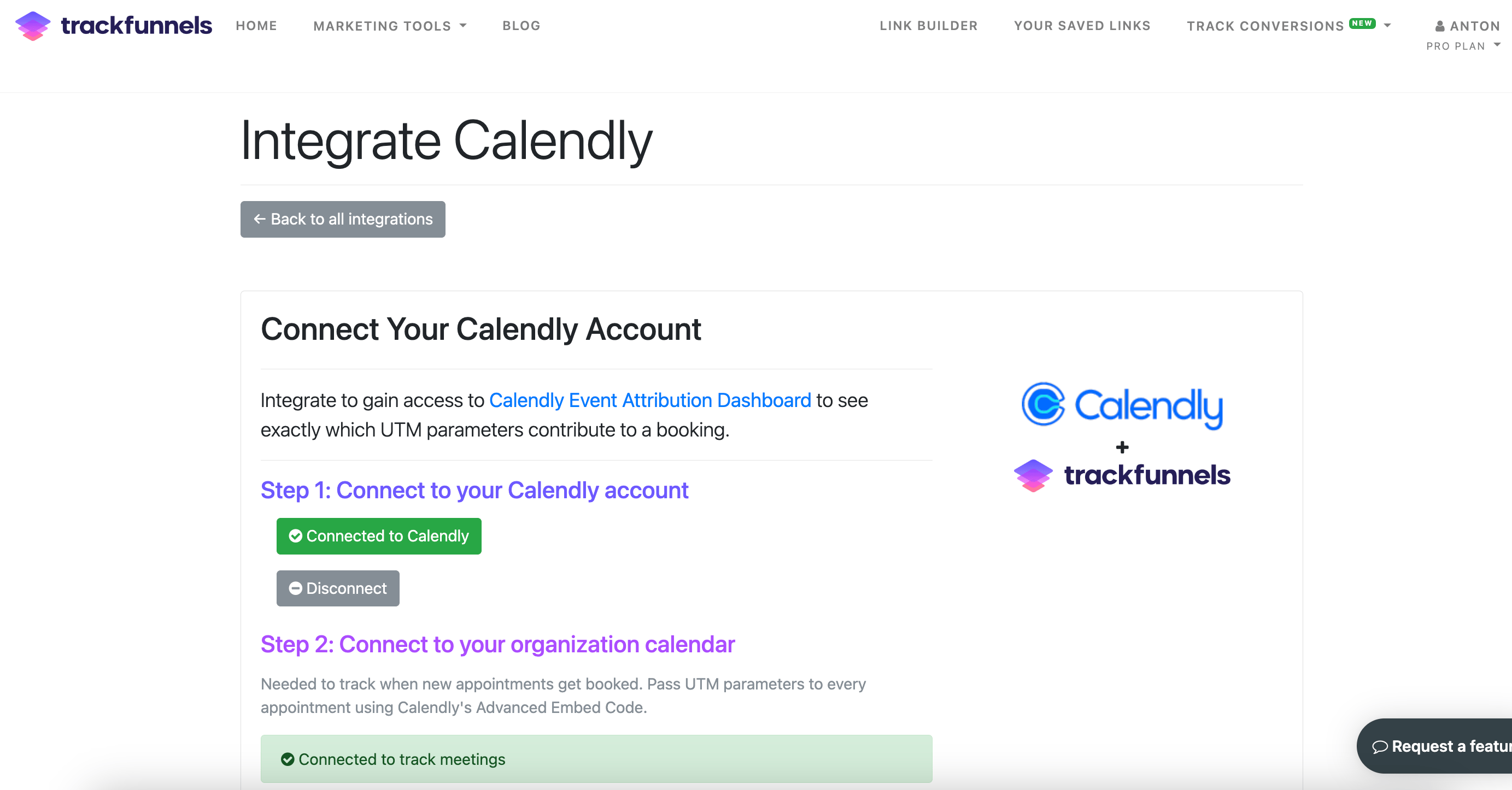
4
Verify the connection
Once TrackFunnels begins receiving booking data, an Active Status indicator will appear next to your webhook in the table. This confirms that appointments are being tracked and attributed.
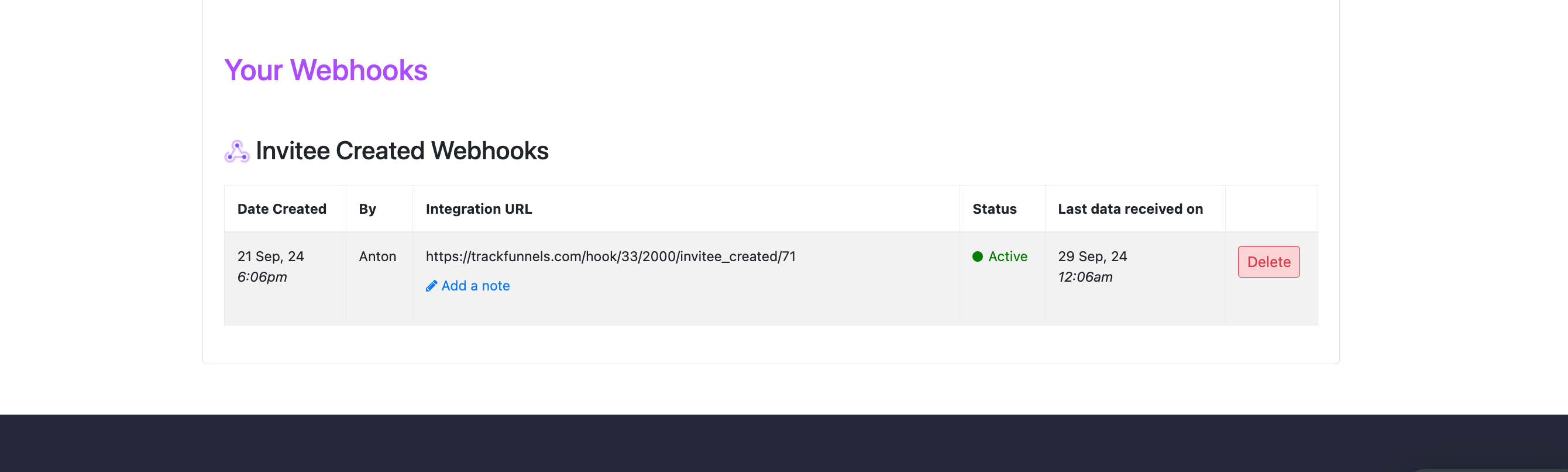
If you have more than one calendar in your Calendly organization, all calendars are connected through this single webhook. All bookings flow into TrackFunnels, and you can filter your attribution data by Calendar Name or Meeting Name in the dashboard.
Only Invitee Created events are tracked — meaning new bookings only. Changes to existing appointments and cancellations are not currently tracked.