

This integration requires a TrackFunnels Pro account. Upgrade or create a free account to get started.
What You Can Track
TrackFunnels supports two event trigger types for the ActiveCampaign integration: Email Link Click Tracking - Tracks clicks on TrackFunnels-built links that appear inside your ActiveCampaign emails. When a contact clicks one of your links, the event is sent to TrackFunnels and recorded against that link. You’ll see the data under the Clicks Received column in your Saved Links dashboard. Tag Added Tracking - Tracks when a tag is added to a contact in ActiveCampaign. This trigger is currently a work in progress — full details will be updated here when it’s available.Connect ActiveCampaign
1
Generate a webhook in TrackFunnels
In your TrackFunnels account, go to Account Settings > Integrations and click Integrate next to ActiveCampaign.You’ll land on the ActiveCampaign Integration screen where you can generate a webhook.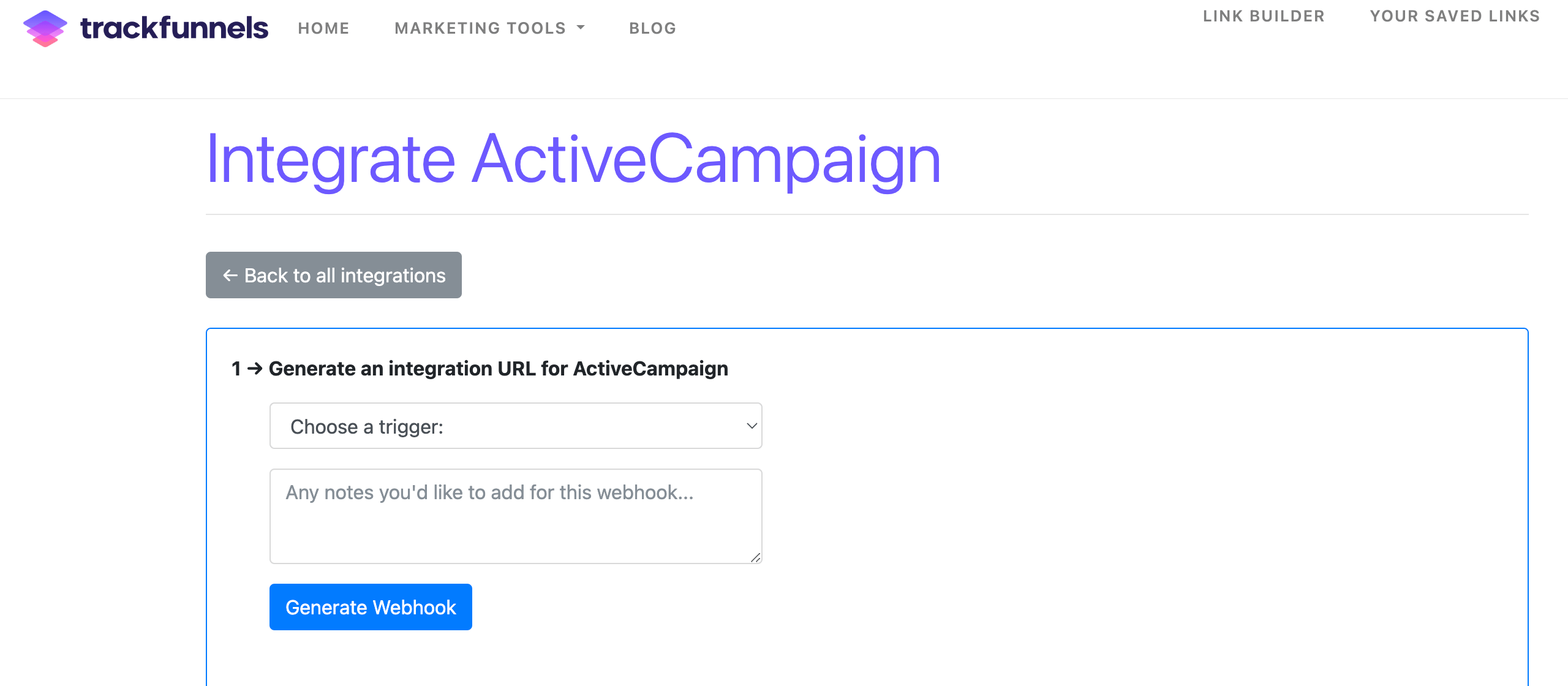
- Email Link Click Tracking — to track clicks on your TrackFunnels links in emails
- Tag Added Tracking — to track when a contact tag is added
2
Open ActiveCampaign webhook settings
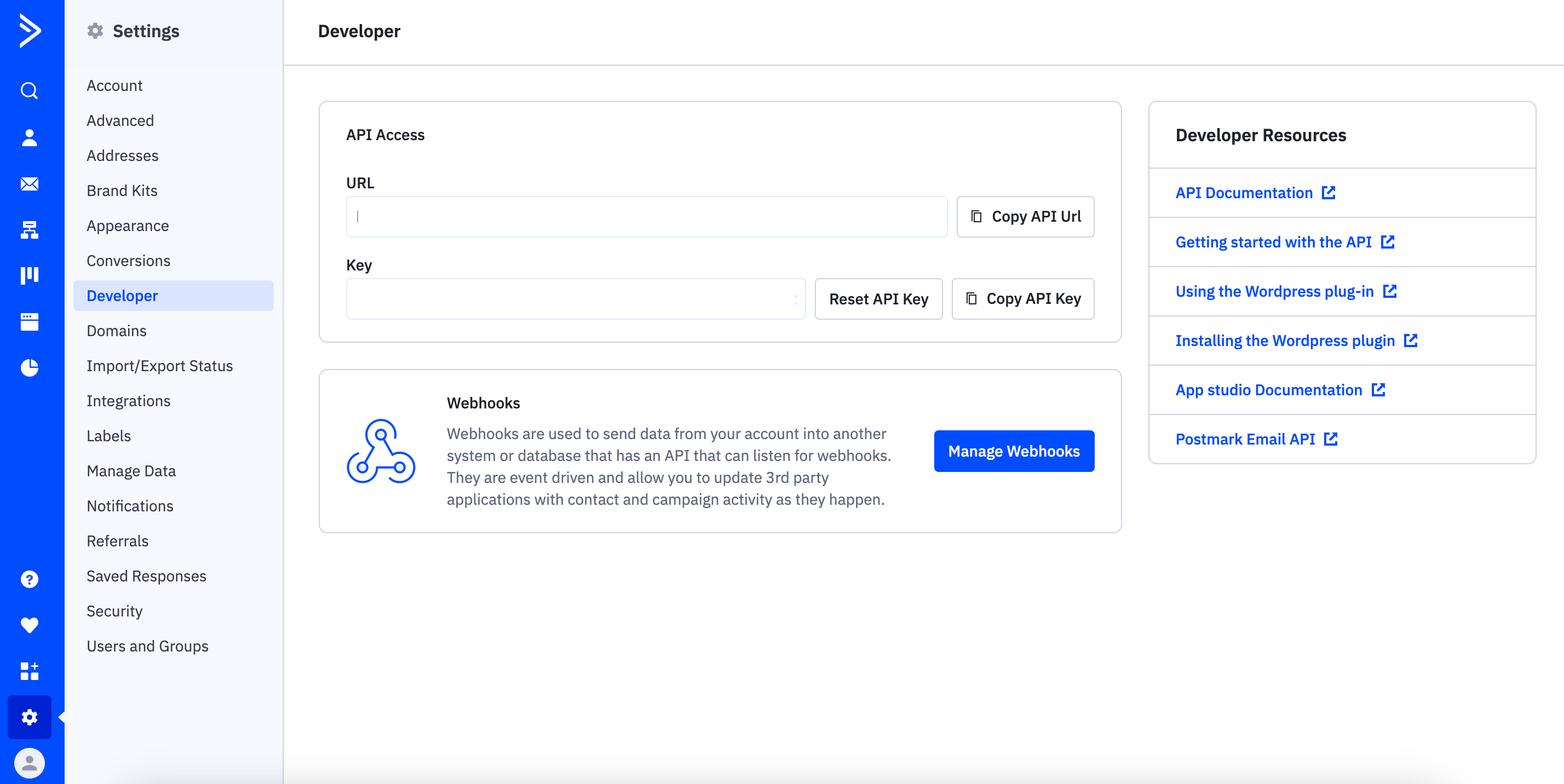
In a new tab, go to your ActiveCampaign account. Navigate to Settings > Developer and click the Manage Webhook button.
3
Add a new webhook
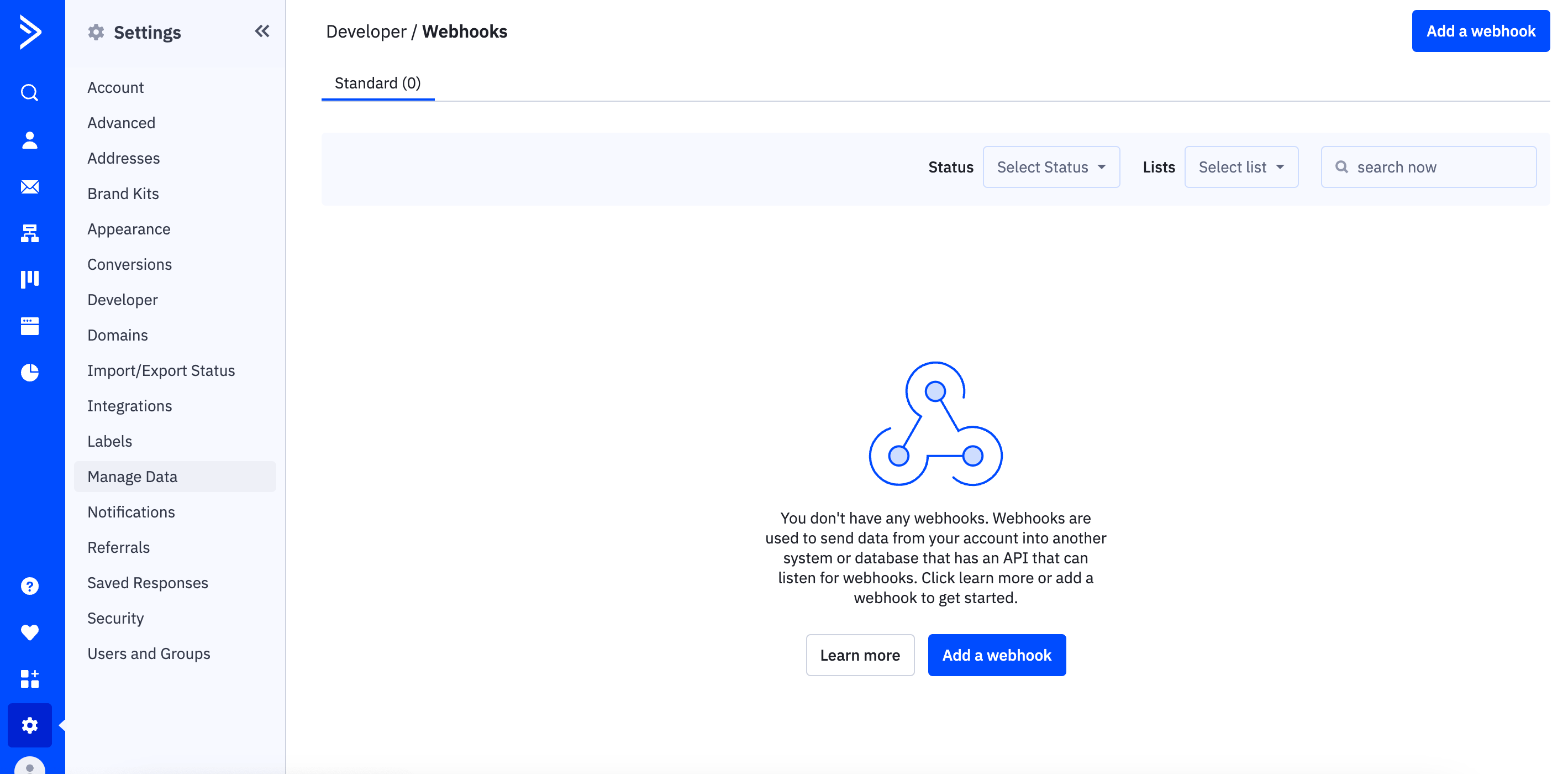
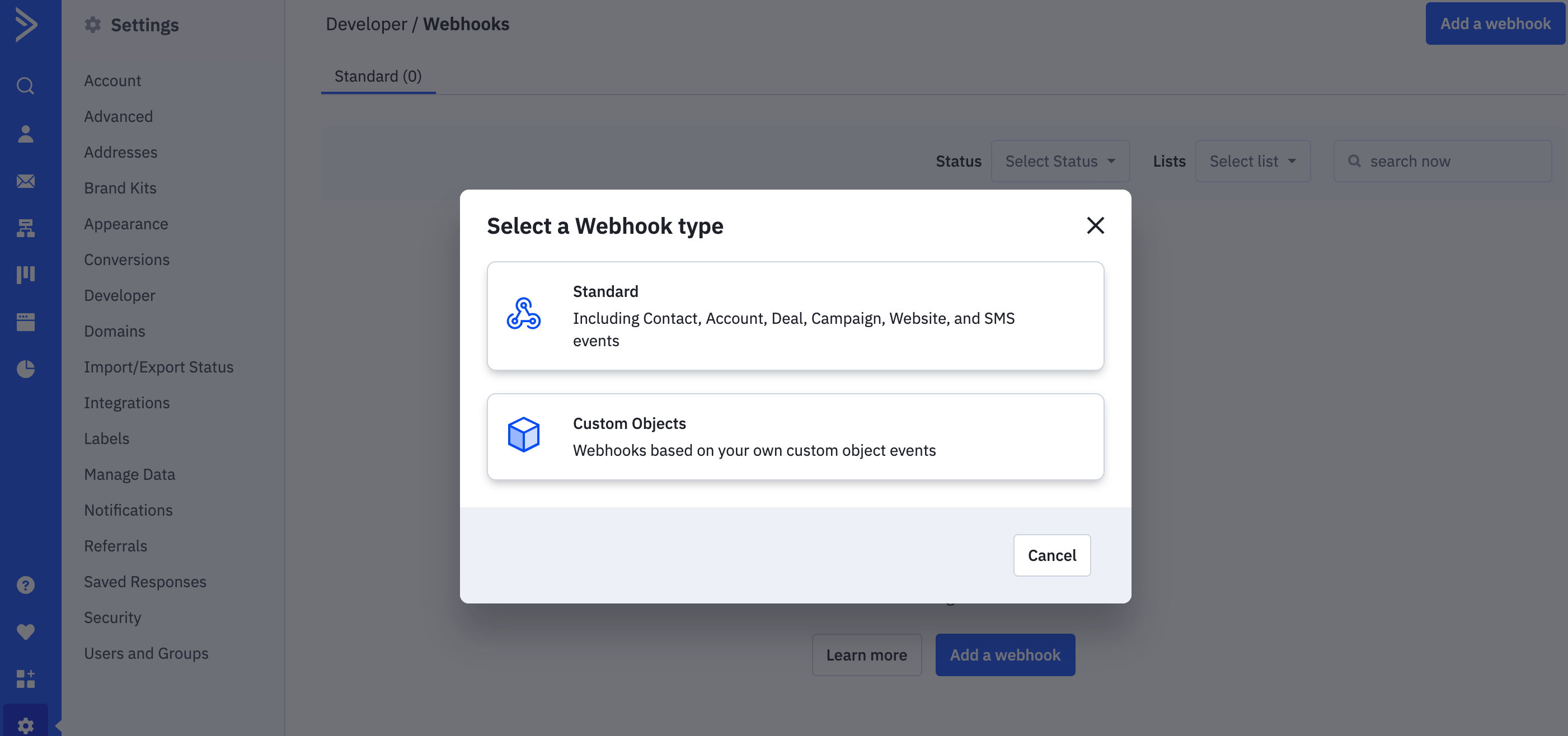
You’ll see a list of any existing webhooks. If this is the first time you are adding a Webhook, you’ll see an empty page. Click on Add a Webhook.
4
Configure the webhook
Fill in the webhook configuration form:
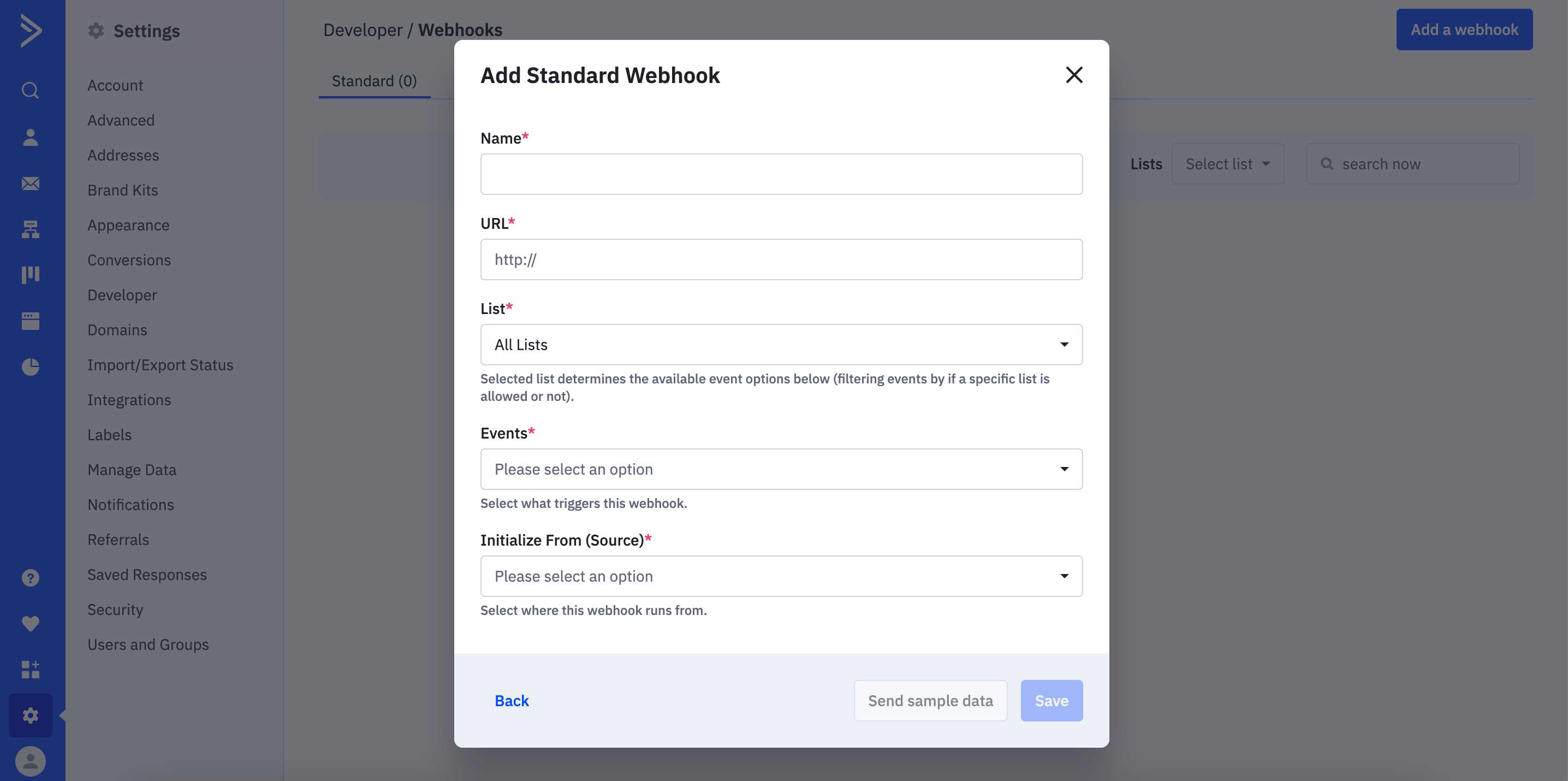
- Name — enter a descriptive label, for example:
TrackFunnels Integration for Link Clicks - URL — paste the webhook URL you generated in TrackFunnels
- List — select the ActiveCampaign list you want this integration to capture
- Events — select the event that matches your chosen trigger:
- If you selected Email Link Click Tracking in TrackFunnels → choose Link Clicked
- If you selected Tag Added Tracking in TrackFunnels → choose Contact Tag Added
- Initialize from Source — select all available options so that events are captured regardless of how they were initiated (by a user, an admin, an API call, etc.)
5
Save the webhook
Click Save. Your ActiveCampaign account is now connected to TrackFunnels and will begin sending data immediately.