

Why should you integrate Jotform with TrackFunnels?
Connecting Jotform to TrackFunnels lets you attribute every form submission to the UTM parameters that brought the visitor to your form. Whether you’re tracking lead gen forms, contact forms, or survey responses, you’ll see exactly which campaigns, sources, and mediums are driving conversions — all inside your TrackFunnels Form Submissions Dashboard.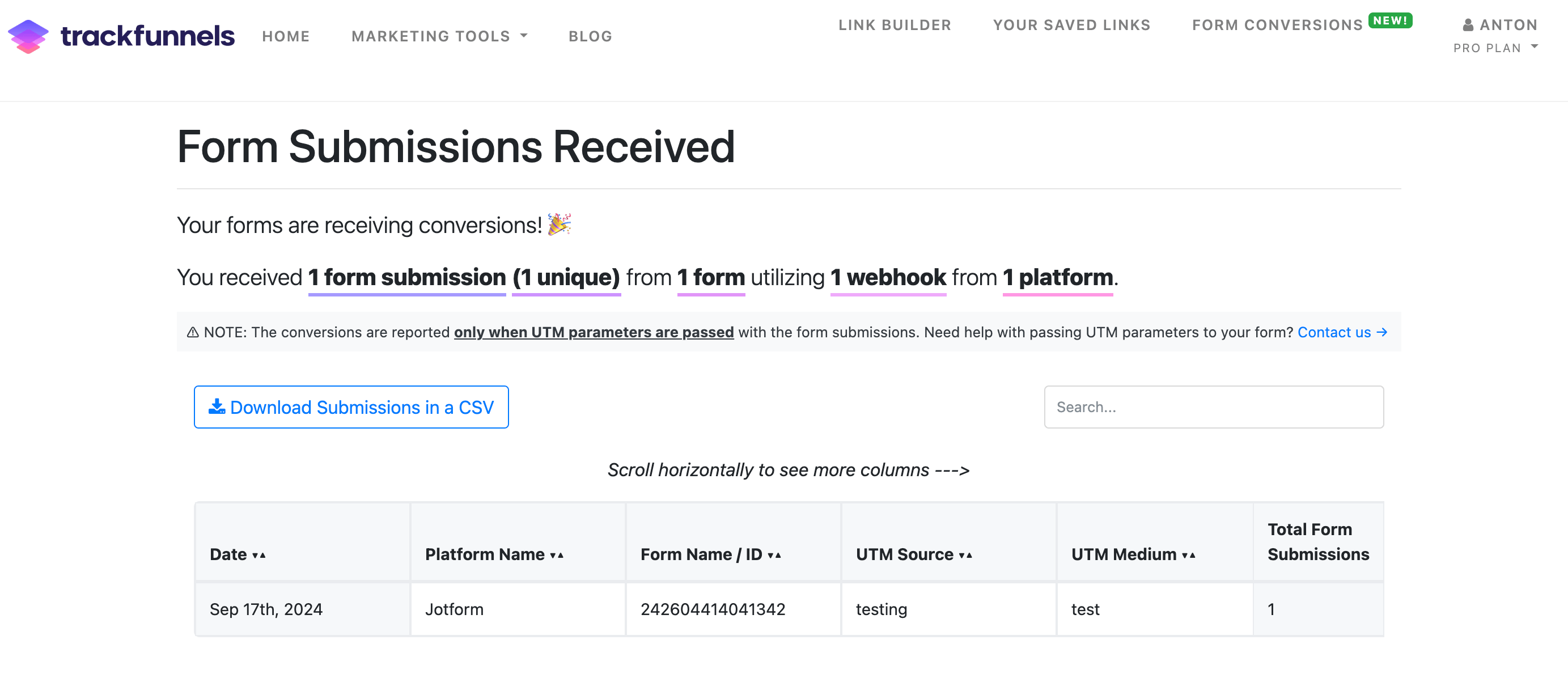
This integration requires a TrackFunnels Pro account. It works with all Jotform plans, including free accounts. Upgrade or create a free TrackFunnels account to get started.
Connect Jotform
1
Generate a webhook in TrackFunnels
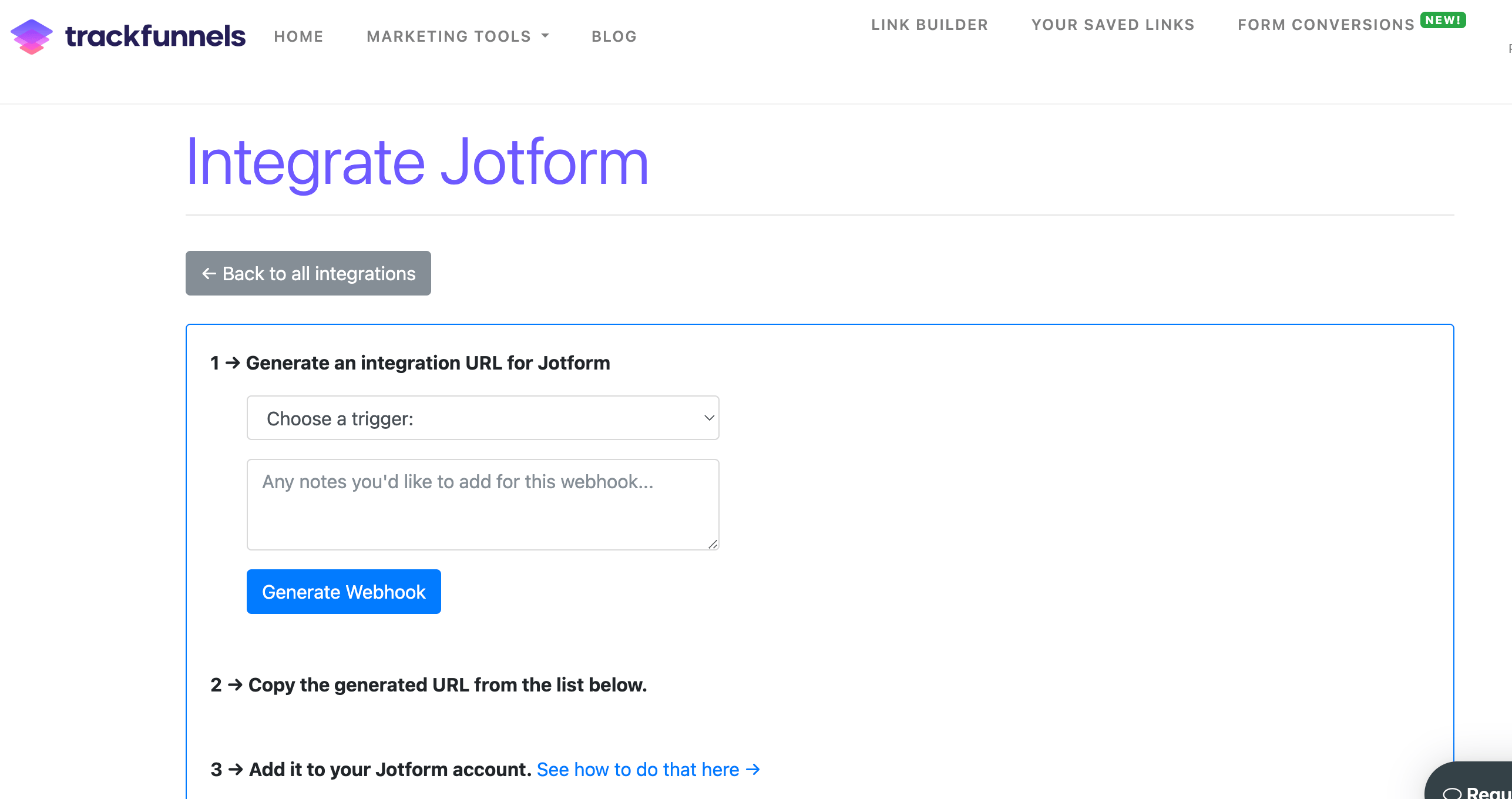
In your TrackFunnels account, go to Account Settings > Integrations and click Integrate next to Jotform. You’ll land on the Jotform Integration screen.
2
Open Jotform form settings
In a new browser tab, go to your Jotform account. Open the form you want to connect to TrackFunnels and click Edit Form.In the left-hand menu, click Integrations. Use the search bar to search for 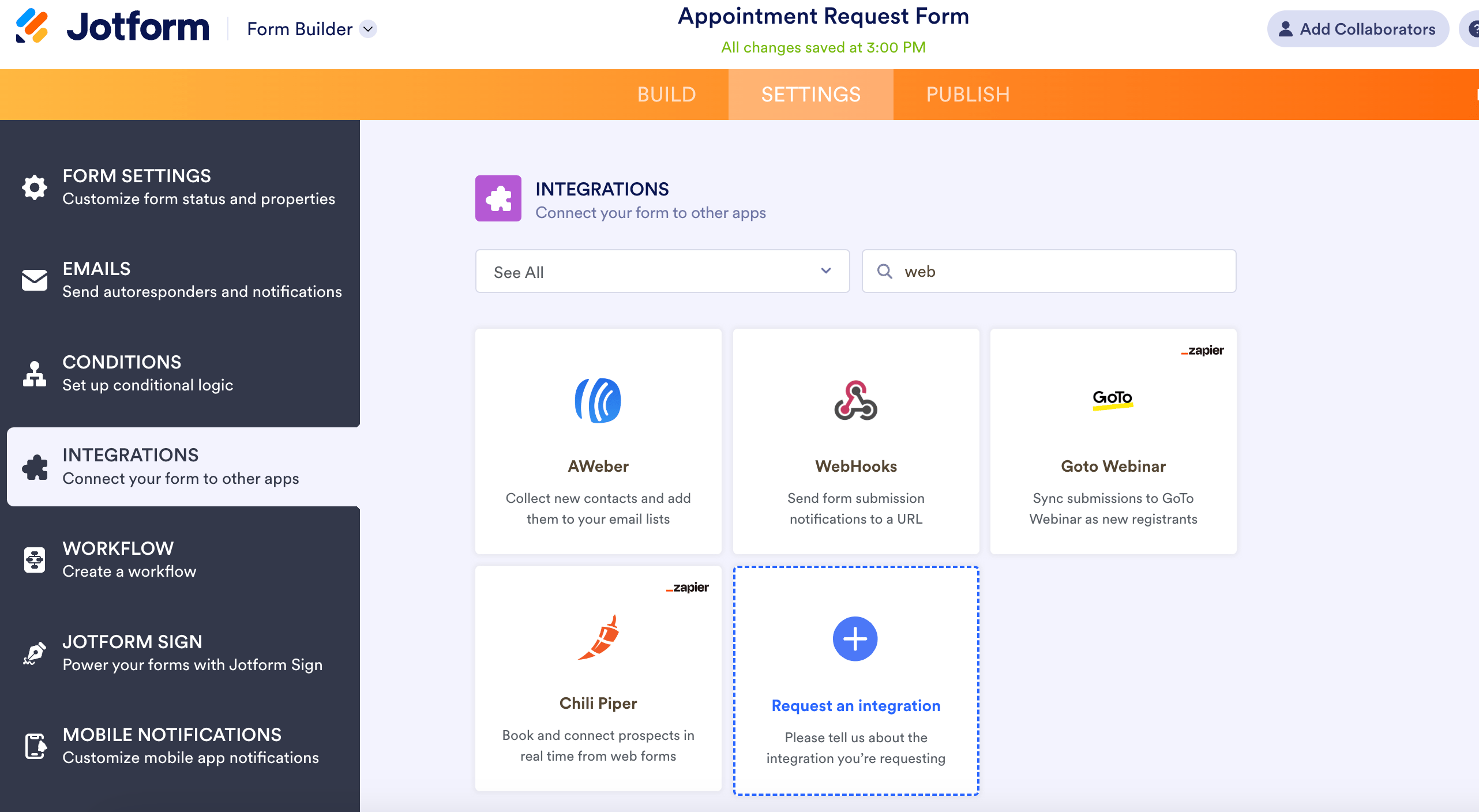
Webhook, then click the Webhook card when it appears as shown below.3
Add the webhook URL
You’ll see an Add Webhook field. Paste the webhook URL you generated in TrackFunnels into this field, then click Complete Integration.That’s it — your Jotform form is now connected to TrackFunnels and will begin sending submission data immediately.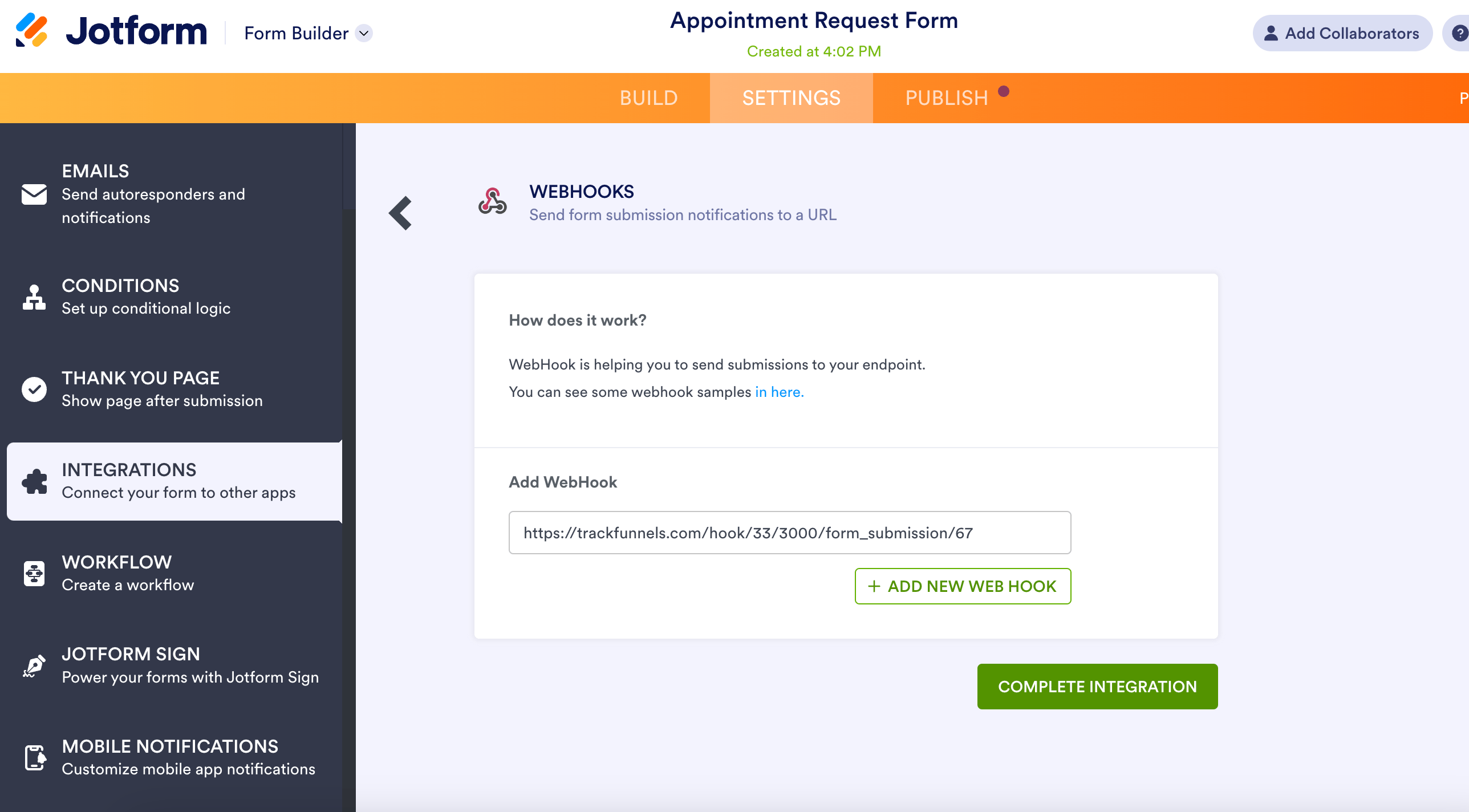
4
Verify the connection
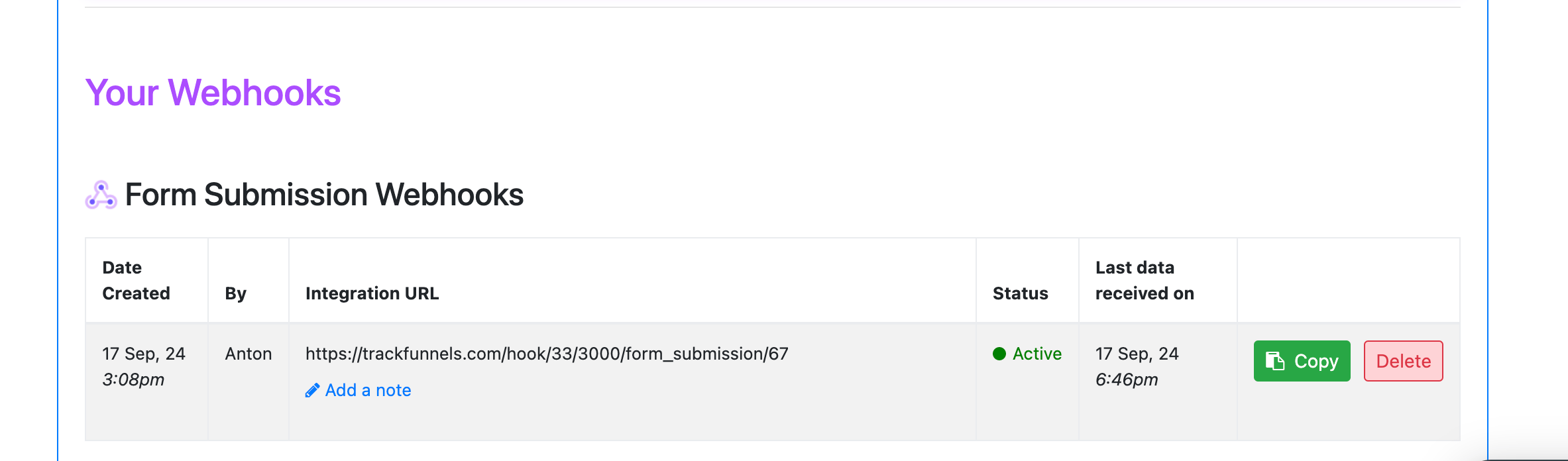
Back in your TrackFunnels account, once a form submission is received, you’ll see an Active Status indicator appear next to your webhook. This confirms data is flowing through successfully.
Spam Submissions
All form submissions that Jotform sends via webhook are recorded in your TrackFunnels dashboard — including spam and test submissions. TrackFunnels cannot filter these on your behalf. To reduce unwanted submissions, enable spam protection and CAPTCHA settings directly in your Jotform form configuration.Selective Submissions
All form submissions appear in your Form Submissions Dashboard, with each row showing the submitted data alongside the UTM parameters that were present when the visitor completed the form. Use the search box at the top of the dashboard to filter submissions by any attribute. For additional features — such as custom filtering, exports, or new columns — click the Request a Feature button in the bottom-right corner of your account screen. You cannot delete individual rows from the dashboard. Manage your submission data at the Jotform level if needed.If you’re having trouble getting UTM parameters to pass through to your Jotform forms, reach out directly at [email protected] — the team is happy to help you get it working.